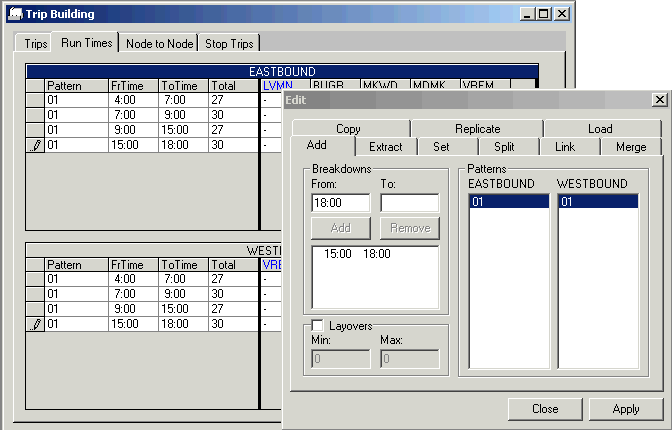
You can add run time intervals on the Add tab of the Run Times
Edit dialog box.
The Add tab of the Run Times Edit dialog
box shows the Breakdowns, Patterns and
Layovers tab. The Patterns frame lists the
patterns to which the run time intervals can be applied.
The
Layovers frame is activated if you select the
Layovers check box. Layovers are times between linked trips that
serve the following functions:
- They allow rest or break time for operators as determined by the union agreement.
- They allow for running time variations due to traffic or passenger
loading/unloading.
- They help ensure that vehicle departures are on time.
-
In the Trip Building screen, select the Run
Times tab.
-
Click the Edit button:

The Edit dialog box appears. See the figure in foreground in the
following graphic.
-
On the Add tab, type the start and end times of the run time
interval you require in the From and To
fields in the Breakdowns frame.
-
Click Add. The run time interval appears in the box below the
Add/Remove buttons.
After you create a run time interval, the system automatically generates a
From time that matches the To time field
of the previous run time interval. For example, as shown in the graphic, after adding
15:00 to 18:00, the To time 18:00 automatically appears on the
From field for the next interval. This helps prevent
overlapping intervals.
- Optional:
Overwrite this automatic entry to type another time.
-
To type each run time interval that you require,
repeat steps 3 and 4.
- Optional:
In the Layovers frame, type the minimum and maximum layover times
in the Min and Max fields depending on your
transit site requirements.
If you do not type values in these fields, the letters NA (Not Applicable) appear in
the MinLO (Minimum Layover) and MaxLO
(Maximum Layover) columns on the Blocking tab.
-
In the Patterns frame, select the patterns from either direction
for which you want to apply the run time intervals.
-
Select the run time intervals you want to apply to
the selected patterns.
-
Click Apply.
The run time intervals you selected appear in the Run Times
grid. Since the run times have not yet been assigned, question marks (?) appear in each
node column of your run time intervals.
- Optional:
To delete a run time interval on the Add tab, select the
interval you want to delete from the list in the Breakdowns frame,
and click Remove.
-
Click Close.
Note: In Trip Building, the system uses greater than (>) or equal to (=) From time and
less than (<).