
Linking Weights to Stop Distances
The Link Weight feature helps provide more realistic stop times.
From the Stop Patterns tab, click . The letters on the Stop Patterns grid change to values. The stop patterns are given the weight of 1 by default. To get more realistic stop times for a pattern, overwrite the weight of the appropriate nodes and stops with other values until you find the best solution.
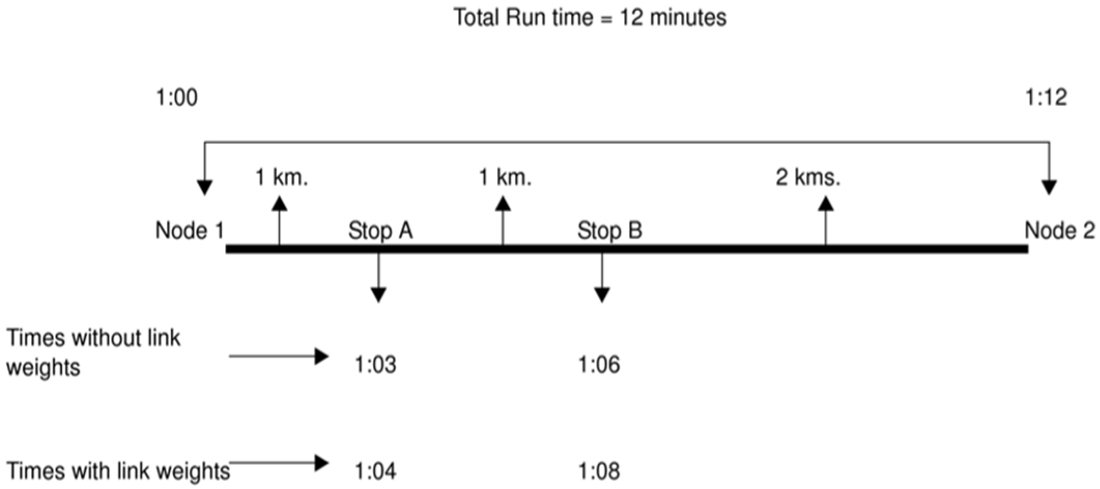
Without using the Link Weight feature, the amount of time between Node 1 and Stop A and between Stop A and Stop B is three minutes each. The amount of time between Stop B and Node 2 is six minutes. The system extrapolates the time between the nodes and stops based on distance over speed.
In order to generate more realistic stop times, use the Link Weight feature to adjust the weight of the stop. To adjust the stop times of the example illustrated in the example, on the Stop Patterns grid, maintain the value of 1 for both Stops A and B and for Node 2, overwrite the value of 1 with a .5. The stop times are changed. The amount of time between each location was adjusted to four minutes each which is closer to the actual stop times.