
Adding Run Types
Run types define how valid runs will be found and what costs will be attributed to them. Each run type has a name, run type number, a set of contract rules and a set of desired or best rules associated with it.
Some points to remember when adding run types:
- Zero (0) is the default number of the new entry. You need to change it to an unused number from 1 to 99. Zero is automatically assigned to illegal runs and therefore should not be used.
- Be careful that you do not overlap your rules. For example, this means maintaining the same platform time for your run types. The cost of the runs is based on the first run type the system comes across that the run fits. If your custom cost routine does not handle overlap run types, you could end up with a run receiving the wrong run type and associated costing.
-
Click or click Union Contract:
 The Union Contract dialog box appears. The run types are listed on the dialog box.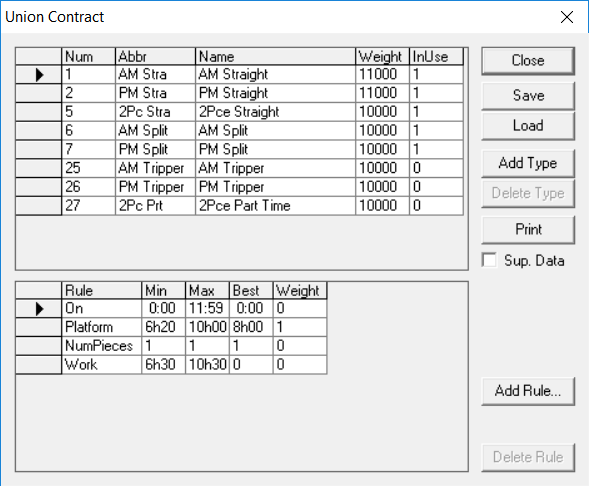
-
Click Add Type.
A new entry appears on the first row of the list.
- In the new row, type a number for the run type in the Num field.
-
In the Abbr field, type an abbreviation for the new run type.
The abbreviation can be any combination of alphanumeric characters up to a maximum of ten.
A message appears if you attempt to save the run type with an abbreviation of more than ten characters.
- In the Name field, type the corresponding full name of the run type.
- In the Weight field, type a value in the range of 1 to 32000.
- In the InUse field, type 1 to use the run type or type 0 if you prefer not to use the run type in the runcut with which you are working.
-
Click Save.
The Save Union Contract File dialog box appears.
-
In the File name field, type the name of the file and click
Save.
The file is saved with a uc file extension.
- To delete a run type, select the run type in the Union Contract dialog box you want and click Delete Type.
- Click Close.