The Distance Wizard can be used calculate the distance between
points marked on the map. MapEdit can calculate distance using four
methods.
Note: If the map has been edited, the binary file must be rebuilt before using the Distance
Wizard.
-
Click , or click the Distance Wizard button:

The Distance Wizard dialog appears. The Distances
tab is open by default.
-
Press SHIFT and click the intersection on the map from which to calculate distance, and then one or more intersections to which to calculate distance.
The following graphic illustrates the appearance of the start and end points:
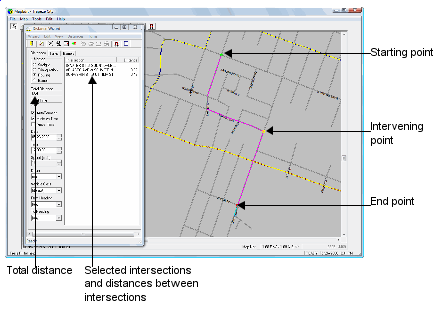
A green circle appears at the starting point, a red circle appears at the
end point, and a yellow circle appears at any intervening points. The intersection
street names and distances appear in the Distance Wizard dialog.
-
In the Distance Wizard dialog, click one of the following
distance calculation options:
-
Straight - Calculates the shortest distance between two
points. This calculation method does not take into account streets or landmarks
between the two points.
-
Triangulation - Calculates distance between points by
drawing straight lines and right angles (that is ., only East-West and North-South
lines). This method gives a more accurate calculation of the distance that vehicles
travel than the Straight method.
-
Routing - Calculates distance by finding the shortest route
along existing streets. For driver reports, this routing method is the most accurate
for distance and time traveled. The Routing calculation method also provides detailed
route directions. For more information, see.
-
Barriers - Calculates distances based on routes that
circumnavigate barriers such as rivers, mountains, and other obstructions.
The total distance from the first selected point, through any intervening
points to the last selected point appears at the left of the dialog. Distances
between consecutive points appear at the right of the dialog.