
Loading Flexible Format Map Data
You can load flexible format map data into the Trapeze4 map database.
You can load data saved in the following flexible formats:
- MapInfo Interchange File
- ArcView ESRI Shape File
- ASCII-delimited
When loading data, you can specify database tables where you want to preserve existing data. For example, if your transit site has created polygons in the map database, you can specify that you want to preserve data in the polygon database table.
When you load flexible format data, you must specify which data files to load since the content and order of data fields in flexible format files can vary. You must also specify field mappings. Field mappings specify which data in the import files to load into which fields in the database. Field mappings can also specify processing methods to use when loading data. For example, you can specify methods of processing data values when loading them.
After specifying field mappings, you can save the settings to use during subsequent map data loads. You can then use the mappings when you load data in the future (for example, if the same data must be reloaded or if an update is provided).
- Start MapMaker and connect to the data source where you want to load map data.
-
On the Datasource tab, in the DBD
Tables area,
- Select the check box of the database tables where you want to load data and clear the check boxes of the database tables where you want to preserve data.
- To load data into all tables that are defined in the mmsMap.dbd file, click Select All.
Ensure that the check box for the MapHead table is not selected. The MapHead table contains essential map information that should not be overwritten. -
On the Load tab, in the Format
drop-down list, choose the format of the data that you want to load:
- ArcInfo
- ASCII Delimited
- MapInfo
Fields appear that are required for loading data in the specified format. -
Select the Append check box.
Note: You must select the Append check box to add data to the data source specified on the Datasource tab.
- Optional:
If you are loading data in MapInfo (.mif) format, in the Load
Type drop-down list, choose the type of data you are
loading:
- STREETS – Streets and other line objects, such as railroads, power lines, and water line features. Most common type of load.
- POLYGONS – When you select this load type, the Polygon Type dialog appears. You can then specify the polygon type that you are loading, or create a new polygon type.
- PLACES – Place code lookup table for the map.
Place codes can include state, county, city, and minor civil
divisions.Note: This option should be used only if the numeric values of the codes are important. The ALPHA_family of process functions provides more straightforward ways of loading place code lookup tables.
- POINTS – Address points or locations. Loads records containing addresses and their data elements such as street name and number. These elements are used as unique identifiers for locations.
- Optional:
If you are loading data in ASCII-delimited format, complete the following
fields:
- Column names in first row check box.
- If the first row of the data file contains column names, select this check box to show the column names and first values in the source file columns area. A dialog shows you the number of columns in the file.
- Click Yes.
- Delimiter field – Specifies the character that separates fields in the data file.
- Column names in first row check box.
-
Click the ellipsis button beside the ASCII import field.
The Open dialog appears.
-
Navigate to the source file with data that you want to load, and then click
Open.
The specified file name appears in the ASCII import field.Note: The source file field name can be ArcInfo Shape File, MIF File, or ASCII Import File, depending on the format of data you are loading.Data fields in the source file appear in the source file columns area. If you are viewing an ASCII file, field values may appear.Note: The source file columns area name can be ArcInfo Columns, MIF Columns, or Import Columns, depending on the format of data you are loading.
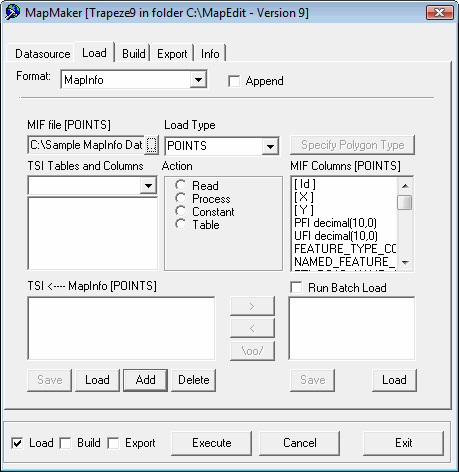
The Source file field is the MIF File [POINTS] field, that specifies source file with data to load. The Source file columns area is the MIF Columns [POINTS] field, that lists data fields in source file.
- Optional: If you are loading ASCII-delimited data, and want to see the next row of values in the data file in the source file columns area, click See Next Record.
- Optional:
To use previously-defined field mappings, click the Load
button.
-
In the TSI Tables and Columns
drop-down list, choose a table in the Trapeze4 map database that you want to
load with data.
Fields in the table appear in the TSI Columns area.
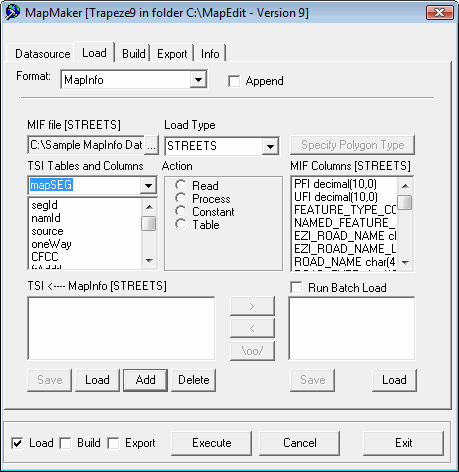
The TSI Tables and Columns drop-down list specifies table in Trapeze4 map database to load with data. The columns area in the TSI Tables and Columns field specifies field in the specified Trapeze4 map database table for loading with data.
- In the columns area of the TSI Tables and Columns field, select the Trapeze4 map database field that you want to load with data from the source file.
- In the Source file columns area, select the field with data to load into the selected Trapeze4 map database field.
-
In the Action frame, select one of the following
options:
- Read
To copy data values from the specified data field into the map database, select the Read option.
- Process
- To transform data values from the specified data field before loading them in the map database, select the Process option.
- In the Function drop-down list, choose a function for transforming the data.
- Click OK, and follow the instructions in the dialog.
- Constant
- To enter the same field value for all imported records, select the Constant option.
- In the Value text box that appears, type the value that you want for every record.
- Table
- To specify a table that contains field values for specific records, select the Table option.
- Beside the empty field that appears at the bottom of the Action frame, click the ellipsis (...) button.
- In the Open dialog, select the text file with data values.
- Read
-
Click Add.
The mapping is added to the TSI <----- data format area, where data format is the format of map data that you are importing.
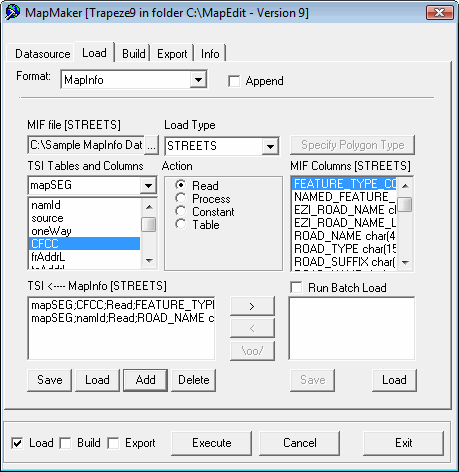
- Optional: To define another field mapping, repeat steps 11 to 15.
- Optional: To delete a field mapping that you defined, click the field mapping in the TSI <----- data format area, and then click Delete.
- Optional: To save the data mappings for use in future data loads, click Save. In the Save As dialog, navigate to the directory where you want to save the text file with data mappings, enter a file name, and then click Save.
- Ensure that the Load check box at the bottom-left of the dialog is selected.
-
Click Execute.
A confirmation dialog appears.
-
Click Yes.
The Info tab shows the progress of the data load.
A Batch Completed message appears when the process is finished.
- Click OK.