
Specifying a Map Data Source
Before using MapMaker, you must specify the Trapeze4 map database where you want to load, build, or export map data.
Note: An ODBC data source name must be created before MapMaker can connect to a Trapeze4 map
database. For more information, see your on-site system administrator.
If you are loading data into the data source, you can also specify database tables where you want to preserve data. For example, if your transit site has created polygons in the Trapeze4 map database, you can specify that you want to preserve data in the polygon database table.
-
Start MapMaker and view the Datasource tab.
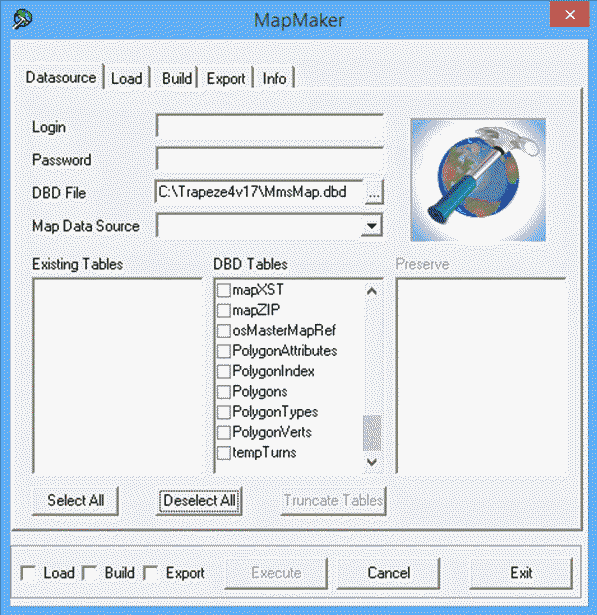
- Optional: If you are using an Oracle database, type your Oracle user name and password in the Login and Password fields.
-
Click the ellipsis (...) button beside the DBD
File field.
-
In the Map Data Source drop-down list, select the Trapeze4 map
data source where you want to load, build, or export data.
Map-related tables in the data source appear in the Existing Tables list.