
Exporting Data in Tiger/Line Format
Using MapMaker, you can export map data from the Trapeze4 map data source in TIGER/Line format. You can export data into TIGER/Line Record Type 1, Record Type 2, and Record Type C files.
- Start MapMaker and connect to the data source from which you want to export map data.
-
On the Export tab, choose TIGER/Line in the
Format drop-down list.
Fields appear that are required for exporting data in TIGER/Line format.
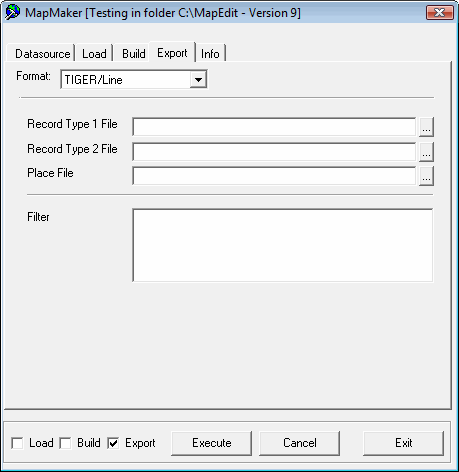
-
Click the ellipsis (...) button beside the Record Type
1 File field. In the Save As dialog, navigate to the
folder where you want to save the exported file, and then click
Save.
The path and default file name, map.rt1, appear in the field.
-
Click the ellipsis (...) button beside the Record Type
2 File field. In the Save As dialog, navigate to the
folder where you want to save the exported file, and then click
Save.
The path and default file name, map.rt2, appear in the field.
-
Click the ellipsis (...) button beside the Place
File field. In the Save As dialog, navigate to the
folder where you want to save the exported Record Type C file, and then click
Save.
The path and default file name, place.rtc, appear in the field.
- Optional:
To restrict which data is exported (for example, to a specific city or road type), type
a statement in the Filter field. For example, to export street data
with specific CFCC codes, type the following statement:
where cfcc like ‘h%’ - Click Execute.
The Info tab shows the progress of the data export.