Place text in quotation marks for exact match search results.
Generating Crystal Reports
Running Crystal reports requires Crystal Reports XI Runtimes. If exporting to PDF,
install Crystal Report 11 R2 Runtimes as well for your reports to work properly.
Open the Trapeze5 workstation.The following procedure applies to all the PLAN Crystal
reports.
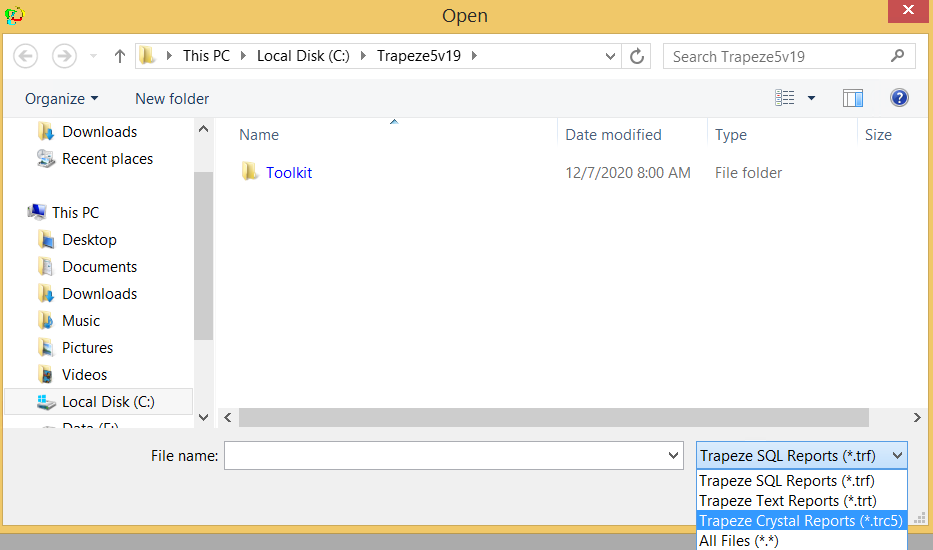
Click File > Open.
The Open dialog box appears.
In the File type drop-down list, click Trapeze
Crystal Reports (*.trc5).
On the list of the reports shown, click the report that you want to generate.
After the selected Crystal report opens, do one of the following steps:
Press F8.
Click the Run button:
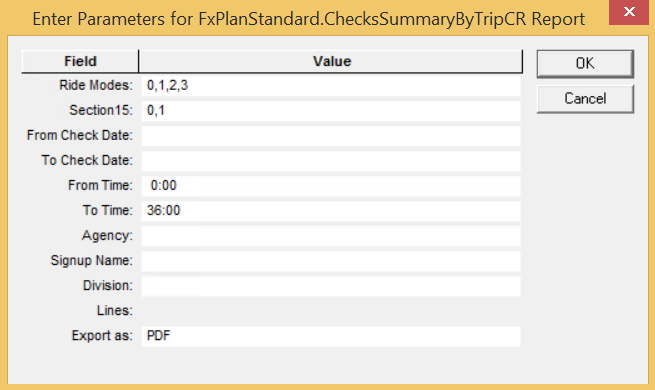
The Enter Parameters dialog box appears. The following
graphic shows the parameters for the Random Check Summary report as an example:
Specify parameter values for the report.
Click OK.
The report is generated and appears on the screen.
If the required fields are
not filled in, a message appears showing the required fields that have to be filled in.
You are asked to check the values and run the report again.
To save the report, click File > Save As. Save the report with a name that clearly identifies it in a location where
you will be able to find it later.
The report is saved with a trc extension.
Note: Crystal Reports must be stored in the same folder as the files with the rpt
extension.
To close the report on the screen, click the Close (X) button at
the upper-right corner of the report view.