
Ridership Map Display Options
The following table explains the fields in the Ridership Map Display dialog box.
| Options | Description |
|---|---|
|
Lines |
Displays a route trace connecting the nodes and stops of the route when a checked trip is selected in the Ridership Analysis screen. |
| Value | Display loads, and other values in the node/stop label. If the check box is not selected, the map displays only the name or abbreviation of the stop. (Click to see which option is selected. |
| Stop Name | Labels the nodes and stops with the full stop name (for example, Folsom @ 1st EB). |
| Stop Abbr. | Labels the nodes and stops with the abbreviated stop name (for example, FO1S). |
| Options | Description |
|---|---|
|
Color |
Refers to the text and label colors of the node/stop label.
To change the text color, choose
Foreground. To change the label
color, choose Background. Then, click the ellipsis button. A color palette appears that allows you to choose a predefined color or to define a color. Click OK. |
| Height | Determines the size of the text. The default is 15. Type a larger value to increase the text size or a smaller value to decrease the text size. |
| Options | Description |
|---|---|
|
Min Load |
Displays the smallest load or other value that was recorded for the selected trip. If you change the option, then the label for this field changes to reflect the new option. For example, if you choose Alight in the Show menu, this field will be labelled Min Alight. |
| Max Load |
Displays the greatest load or other value recorded for the selected trip. If you change the option, then the label for this field changes to reflect the new option. For example, if you choose Alight in the Show menu, this field is labelled Max Alight. |
|
Min. Line Width |
Determines the width of the line on the map at its smallest load or other values. |
| Max. Line Width |
Determines the width of the line on the map at its greatest load or other values. |
Line Colors 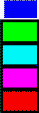 |
On the right side of the Lines frame is a
color bar. The color on top is the color of the line at its
minimum (load, board, alight, or other) value on the trip while
the color at the bottom is the color on the line at its maximum
value.
|