If node values have been changed in FX, they are not automatically updated in PLAN.To update the node values:
-
Click .
The
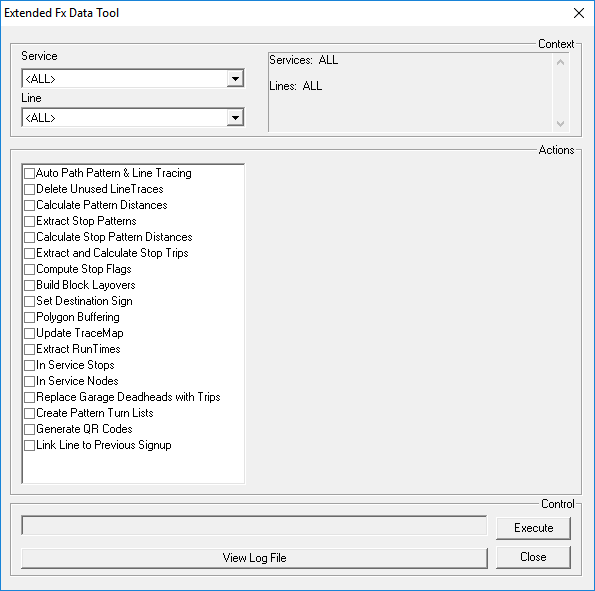
Extended FX Data Tools dialog box appears.
For more information on this feature, contact your Trapeze
representative.
-
In the Context (top) frame, select the service and the line that
you want to update.
- Optional:
To update more than one service and line, select Custom in the
drop-down Service and Line drop-down
lists.
A dialog box appears that allows you to select all the appropriate services and
lines.
-
In the Actions frame, select the Extract and Calculate
Stop Trips option.
-
Click Execute.
The button turns into a Stop button. You can observe the
progress of the action in the Control frame.
- Optional:
To stop the process at any time, click Stop.
-
Click Close.
Any existing extractions are updated to the new values; you do not have to extract them again.