Changing the Appearance of Analysis Points on the Map
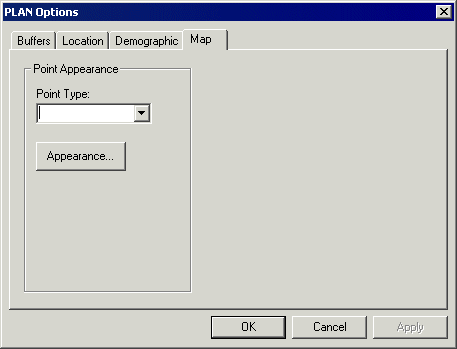
The Map tab of the PLAN Options dialog box allows you to change the appearance of some analysis points on the map. This helps to emphasize the point and make it easier to view.
-
In the Spatial Analysis screen, do one of the following
steps:
- Click .
- Click the Setup button:

The PLAN Options dialog box appears. -
On the Map tab, select any of the following point types from the
Point Type drop-down list:
- Path Point: Affects points that appear briefly when you are drawing a temporary route.
- Location: Points that are generated from a location analysis.
- Selected Location: Points that are generated from a location analysis and those that you have selected on either the Map or the Locations tab in the Spatial Analysis screen.
-
Client: Points generated from a PASS Booking analysis. You can change the shape, size, and color of the point representing the client (trip origin), but only the shape and size of the destination point.
- Selected Client: When you select a client record from the
Locations tab after running a Pass Booking analysis, the selected
record (trip origin) appears different compared to the other client (trip origins).
-
Click Appearance.
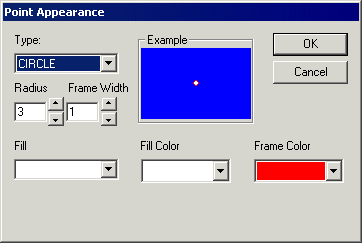
The Point Appearance dialog box appears.