
Setting Buffers Using Polygons
Polygons are established or enclosed geographic areas such as counties, airports, and parks. When you select geographic areas for analysis using polygons, you do not actually create buffered areas around polygons.
-
In the Spatial Analysis screen, do one of the following
steps:
- Click .
- Click the Setup button:

The PLAN Options dialog box appears. -
In the Add New frame, click
Polygons...
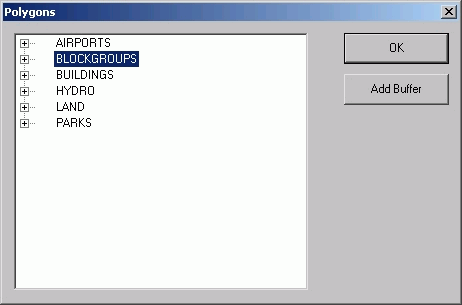
The Polygons dialog box appears.
-
In the Polygons dialog box, click OK.
The polygon is added to the list on the Buffers tab of the PLAN Options dialog box.
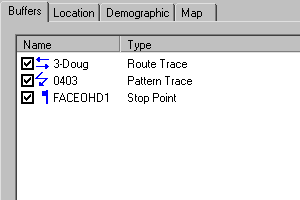 Note: Since you do not need to define a buffer radius for a polygon because a polygon is already a defined geographic area, the Buffer Radius dialog box does not appear when you click Add Buffer. However, you must click Add Buffer, and then click OK to include the selected polygon in your list. If you do not click Add Buffer before clicking OK, the system closes the Polygons dialog box without placing the polygon in the list.
If you define multiple buffered areas that are close together, they may overlap and possibly obscure each other. Each time a new buffered area is created, it moves behind any existing ones. To bring a buffered area forward, select it from the list on the Buffers tab of the PLAN Options dialog box, and then click Properties. You do not have to make any changes, just click OK in the Buffer Properties dialog box. The selected buffered area is moved to the front. The only exception to this are trace routes, which always remain in front.