Setting Buffers Using Locations
Locations refer to places that have been listed together since they are of similar nature or have similar attributes.
-
In the Spatial Analysis screen, do one of the following
steps:
- Click .
- Click the Setup button:
 .
.
The PLAN Options dialog box appears. -
In the Add New frame, click
Locations....
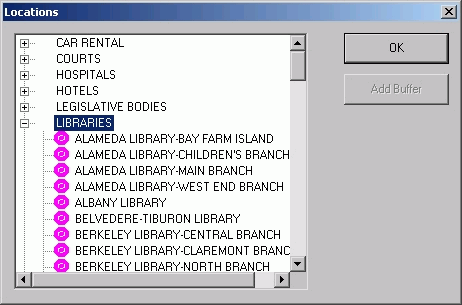
The Locations dialog box appears.
-
In the Locations dialog box, click
OK.
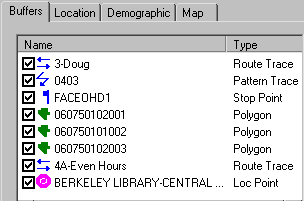
The buffers are defined and added to the list on the Buffers tab in the PLAN Options dialog box.