
Running Scorecard Reviews
Once the scorecard template is complete, you can run scorecard reviews for your employees.
- Open the Employee Score Card Wizard screen.
-
Open the Context (F3).
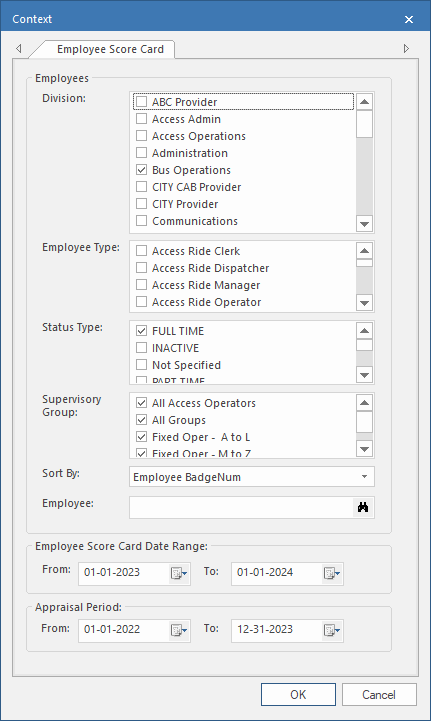
Set the filter requirements to show a list of employees to
review.
- Select the Division, Employee Type, Status Type of the employees to be reviewed.
- Select a Supervisory Group for the employees to be reviewed.
-
Select the From and To dates for
the Employee Appraisal Date Range.
Only employees whose Next Review Date falls during this time frame are shown. Employee Next Review Dates are found in the Employee Profile - Employee Card screen.
- If shown, select the From and To dates for the Appraisal Period.
- Optional: In the Employee field use the find tool to select a specific employee to be reviewed.
-
Select OK.
Eligible employees are shown.

-
Select an employee and then Run Score Card Wizard:

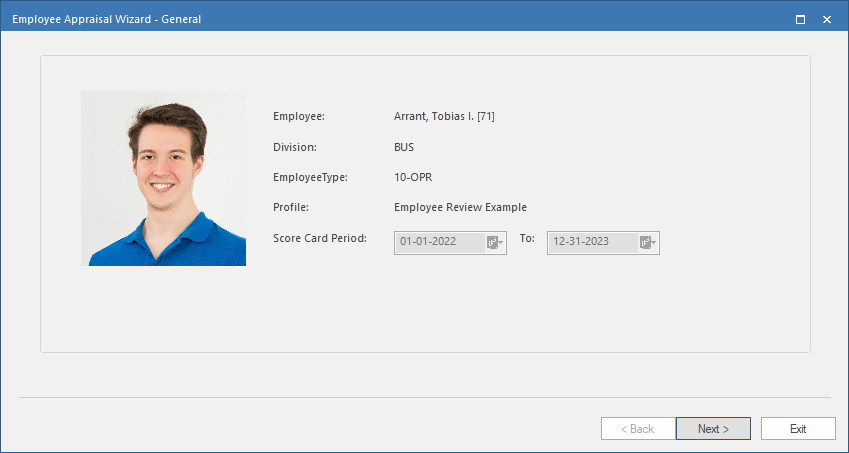 Note: To save the scorecard review as a draft, follow these steps:
- Select Exit.
- In the message box with the confirmation Do you want to
save this appraised data as draft?, select
Yes. The scorecard gets saved with the Draft status:
 .
.
- To continue a draft scorecard review, select the operator record
and then Update Score Card:

-
Select Next.
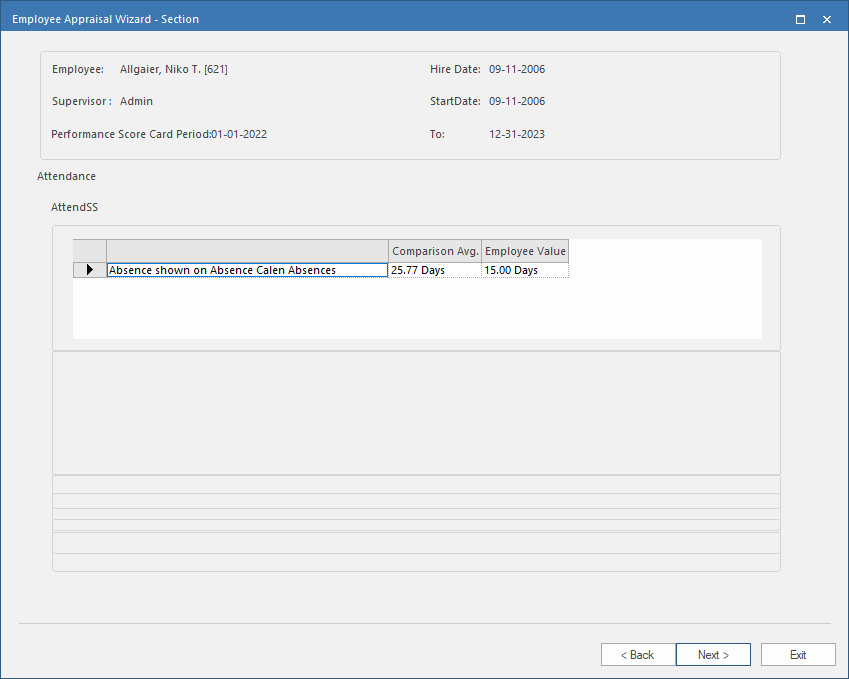
- Complete each page as required.
- Optional:
On the final page of the wizard, set the Next Score Card
Date.
The suggested date is based on the value in the property.
-
If a confirmation dialog appears, select Yes.
A confirmation dialog appears if the property is selected.The employee scorecard record is updated with status as Complete. If the employee record is not shown, check the Context (F3). Employee records are shown based on the Next Review Date,which was updated using the Next Score Card Date field in the wizard.
