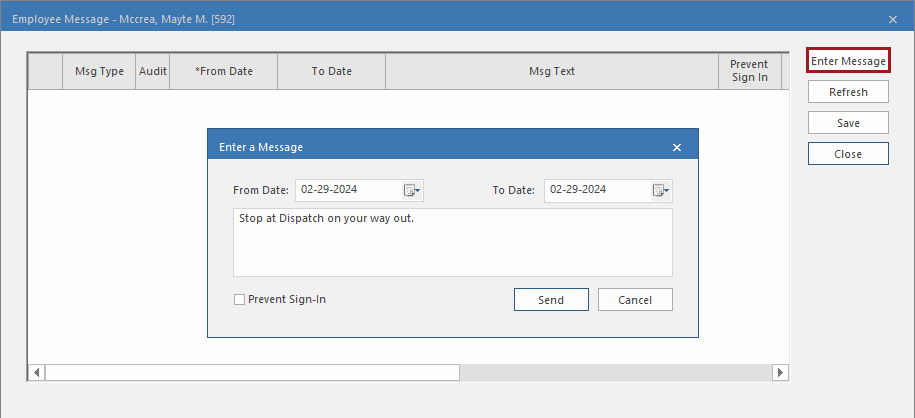
Create messages for specific employees from the Daily Activity
screen.
Open the Daily Activity screen and set the Context
(F3).
Do one of the following:
In the work list, select a work item to create a message for the
employee assigned that work.
In the employees view, select an employee record to create a message for
that employee.
Select Employee Messages:
Select Enter Message.
The Enter a Message dialog appears.
Enter the date range you want the message visible for in the From
Date and To Date fields.
Employees receive their messages when they first sign on or sign off during
the date range. If they don't sign on or sign off during the date range, they
won't receive the message. (In ESS expired
personal messages are archived.)
Enter the message text.
The message is limited to 200 characters.
Optional: To prevent the employee from signing in during the message date range, select
Prevent Sign-In.
If selected, the message won't be printed on copies of the employee's receipt
if the employee is manually signed in.
Select Send.
The date and time the message printed appears in the
Employee Message dialog in the
Printed/Acknowledged field.