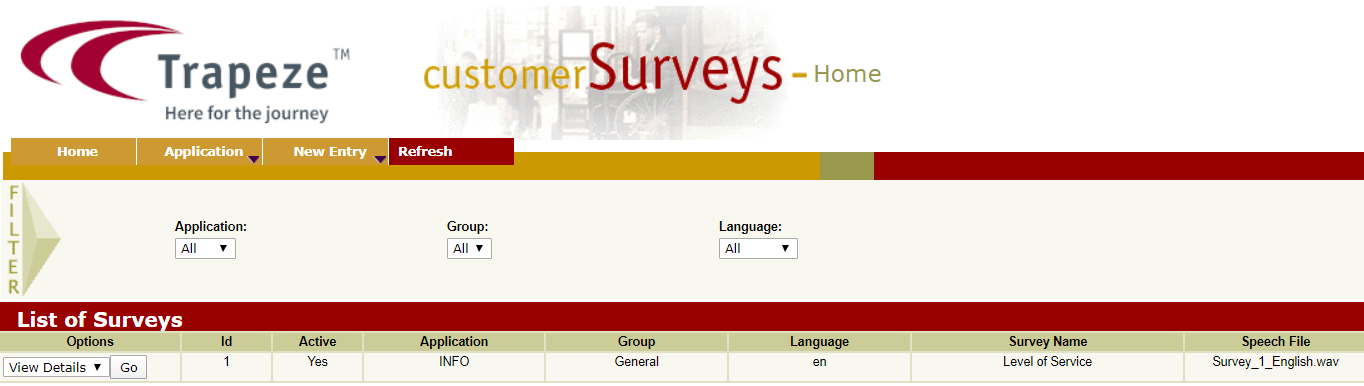
You can add questions to an existing survey.
-
In the List of Surveys grid, select the survey to which you want to add questions.
-
In the Options list, select Questions and
click Go. The List of Questions screen
appears.
-
On the screen toolbar, click New Question.
The
Add New Question screen appears.
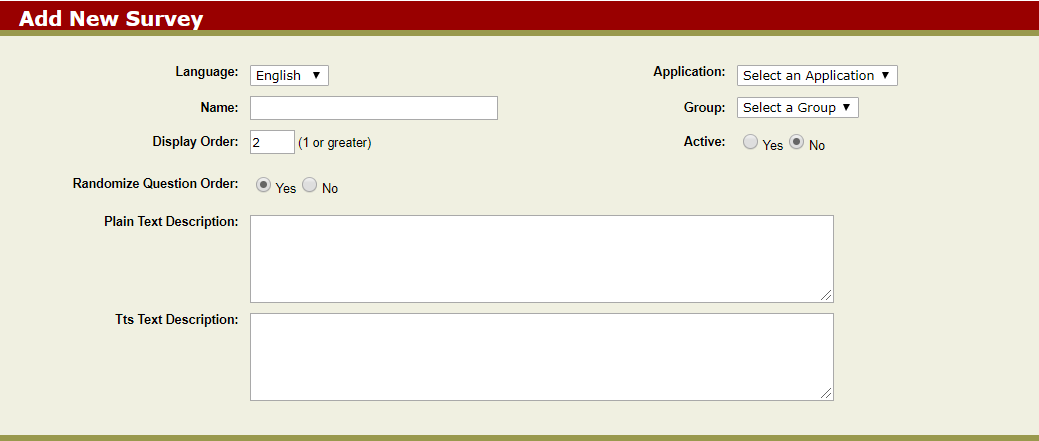
The Survey ID and Language are
automatically filled in based on the survey to which you want to add a
question.
-
In the Name field, type a name for the question.
-
In the Display Order field, type the
number that sets the order in which the question appears if the survey is not
randomized.
-
In the Plain Text Description and TTS Text
Description fields, type the new question.
-
On the screen toolbar, click Submit.
An information page shows the details of the new question.
-
Click OK.
You are directed back to the List of Questions
screen.
-
To return to the Customer Surveys screen, click the
Back on the screen toolbar.