
Logging on to the Client Shell
The Service Shell must be running before you can open and log on to the Client Shell.
-
Do one of the following steps:
- Double-click a shortcut, if available, to the CliShell.exe file.
- In the path\Bin\vc12\Win32\Release folder, where path is the directory where IVR is installed, double-click CliShell.exe.
-
At a command prompt, change to the Trapeze6 Bin folder, and type the following command:
CliShell.exe [-switches]Where switches are optional command line switches that you can include to change the login behavior.
The Login dialog box appears.
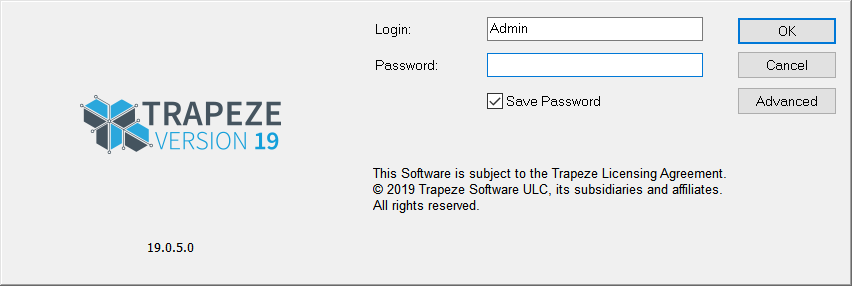
- In the Login field, type your user name.
- In the Password field, type your password.
- Optional: To save your password, select the Save Password check box.
- Optional:
To view or change additional information, click Advanced.
Three fields are shown below the Save Password check box: Profile, Server, and Port.
- To communicate with a different Service Shell, change the server and port for the Client Shell.
- To start the Client Shell without loading the workspace, select the Skip Workspace Loading check box.
-
Click OK.
If users do not have the appropriate security permissions, a message appears advising them that they are unable to proceed.