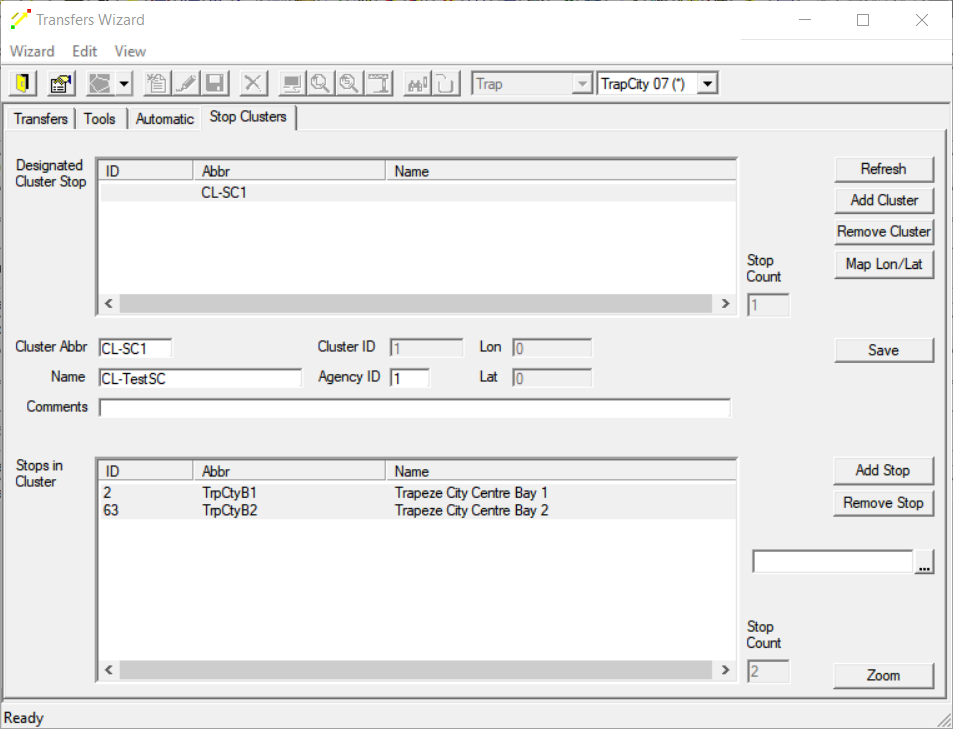
Adding Stop Clusters
If you have a series of bus stops that are geographically located close to one another, it may make sense to put them together in a stop cluster.
- Open the Stop Clusters tab.
- Click Add Cluster.
- In the Cluster Abbr field, type an appropriate abbreviation for the new cluster.
- In the Cluster Name field, type an appropriate name for the new cluster.
- Optional:
In the Agency Id field, type the code for
the selected agency.
An ID is generated in the Cluster Id field. This is read-only.
-
Click Add Stop.
The Stop to Add field is displayed.
- Type the Stop abbreviation of the stop you want or click the ellipsis button and select the stop you want from the drop-down list.
-
Click Save.
The new stop cluster is added to the top grid.