
Creating Daily Runs

When you have more clients requesting trips than usual, you can create a new run to be added to a daily run list.

Before you begin

Runs must be open.

About this task

The run you create is active only for the specific live schedule that you choose. It does not affect the master run list and is not copied for future live schedules.

Procedure

  1. Click the Daily option.
  2. In the Schedule field, click the ellipsis button ().
    The Select Schedule dialog box appears.
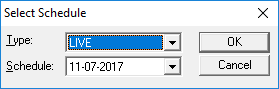
    The Select Schedule dialog box with the Type selected as LIVE and the Schedule selected as 11-07-2017.
  3. In the Type field list, click Live.
  4. In the Schedule list, click the date for which you want the run to be added.
  5. Click OK.
  6. Click the Add New button:
    Piece of paper with a folded top right corner and a star on the left-hand corner.
    The Detail tab opens.

Results

Because the daily run you create is assigned only for a specific Live schedule, the From Date, To Date, and Schedule Period fields are not enabled. All other input fields are available.

What to do next

Follow the procedure for Creating Master Runs to create a daily run. Do not perform steps that are noted as pertaining to master runs only.