
Granting Trip Plan Analyzer Wizard Security Permissions
Users who need access to the Trip Plan Analyzer Wizard must be granted the correct security permission.
Before you begin
Procedure
- Do one of the following:
- Click .
Depending on your system setup, Security may be found in a different location.
- Click the Security shortcut:

The Security screen appears. - Click .
-
In the left pane, select the user or group to be granted the security
permission.
The security keys for the selected group are shown in the left pane and the permission details are shown in the right pane.
-
In the Permissions pane, navigate to .
This security permission controls whether users can access the Trip Plan Analyzer Wizard in the Trapeze4 Workstation.
In Itinerary Planning, if the permission is not granted, trips cannot be compared in a PASS context in the Trip Plan Analyzer Wizard, and the Toggle Trip Plan Analyzer Tabs button looks slightly different then when permission is granted.
-
If the Effective Permission is not set to
grant, in the Permission
column, select grant.
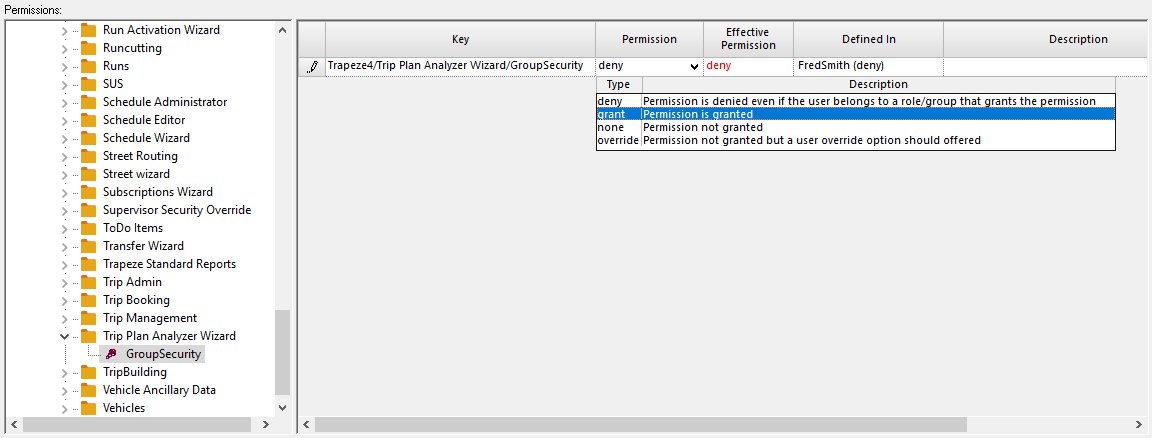
The Effective Permission column gives the current state of the security permission for the user or group. It does not allow you to make changes to that state. This must be done in the Permission column. -
Click the Save button:

Results
- In , the right-click menu command Trip Plan Analyzer Wizard.
- In , the Trip Plan Analyzer Wizard button:
