
Defining Publish Trips Jobs
A Publish Trips job generates a list of trips for selected booking subtypes in XML format for the selected date.
Before you begin
To specify which third-party server to send the list to, configure the Trapeze6 context property .
About this task
Procedure
- Select a job from the grid.The scheduled job record settings are shown in the Job Schedule frame.
- Confirm the Agent Name PassScheduleAgent is defined for the job schedule.The selected agent determines the options that are available in the Job Type field.
- Click Job Data.The Job Data dialog box appears.
- Define the schedule type and date information:
- In the Job Type field, select Publish Trips. If no Job Types are available, confirm that an Agent Name has been selected in the Job Schedule frame of the Schedule Job Agent dialog box.
-
Click New.
The New Batch dialog box appears.
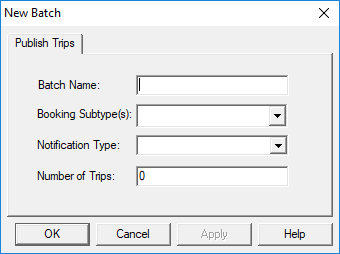
- Type the Batch Name for the job step.
- Click the Booking Subtype(s) for which to publish trips.
-
Click the Notification Type to publish trips for.
Notification types are defined in Trapeze6 ancillary data by a system administrator. (The extension used for notification types is Cmn_Cli_CommonAncillary.)
- Type the Number of Trips to list.
- Click OK.
-
Click OK.
The Job Data dialog box closes.
- Click Save.