
Automatically Loading Template or Training Schedules
Set Schedule Server to automatically load template or training schedules.
Before you begin
Procedure
-
Click .
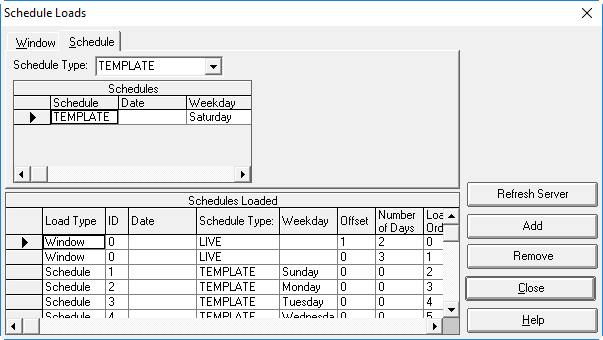
The Schedule Loads dialog box appears.
-
In the Schedule Type list, click a schedule type. For example,
Template or Training.
The Schedules grid shows schedules that are associated with the selected Schedule Type. For templates, only schedules that are unloaded appear in the Schedules grid.A list of all unloaded schedules associated with the schedule type appears in the Schedules grid.
-
In the Schedules grid, select the schedule to be loaded, and
then click Add.
The Schedules Loaded grid shows schedules selected for automatic loading.The template or training schedule is added to the Schedule Loaded list.
- Optional: In the Load Order cell of your new entry, type a number to determine the order that the template or training schedule is to be loaded.
-
Click Refresh Server.
Schedule Server is updated.
- Click Close.