
About Opening and Viewing Screens
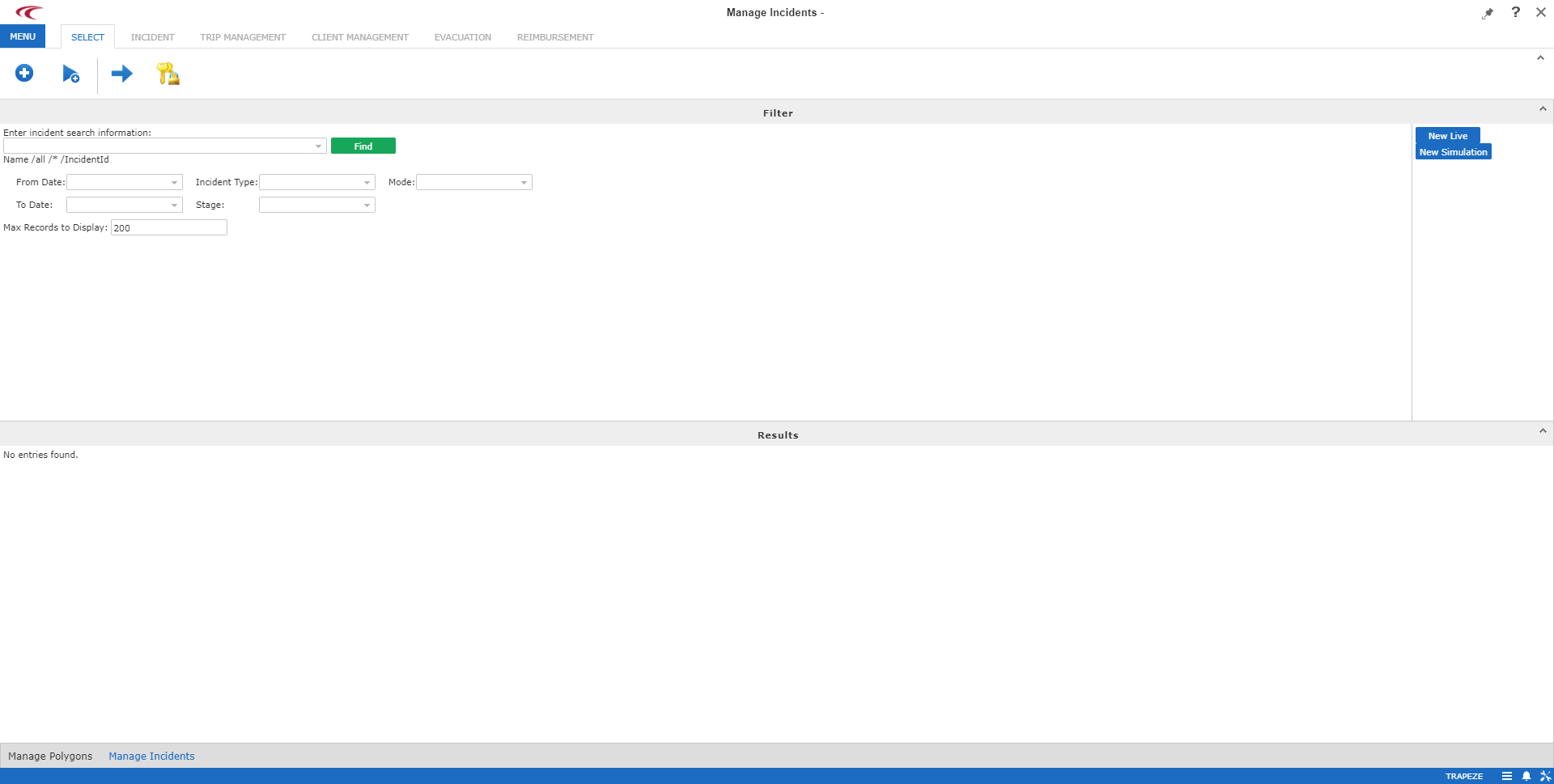
The Main Menu contains a list of other screens you can open.
For example, clicking Manage Incidents in the Main
Menu opens the Manage Incidents screen.
| Image | Element | Description |
|---|---|---|
 |
Title bar | Located at the top of system screens, the title bar shows the name of the
active screen and tabs for the Step Manager. When the text within a tab is
highlighted blue, it means it is currently selected. When the other tabs are greyed
out, it means they are unselectable until the current tab is completed and
saved. For example, the example title bar shows that the Manage Incidents screen is active and the select tab is selected. |
 |
Task bar | The task bar lists open screens and enables you to navigate between open screens. |
 |
Info button. | Click this button to access the Info pop-up box. In the Role field, select Site Managers or Administrators to switch to the preferred user type. |
 |
Main Menu button | Click this button to access screens for performing tasks such as managing incidents and managing shelters. |
 |
Customize Notifiers button | Click this button to open the Links - Notifier Manager dialog box. |
 |
Configuration Menu button | Click this button to access options for configuring the system and its
screens. Depending on your permissions, the Configuration Menu button might not be present. For more information, contact your system administrator. |
 |
Help button | Click the Help button to access help about TRR. Customization is required for this button to be functional. |
 |
Close button | Click the Close button in the upper-right corner of the screen to close the current screen without closing other open screens. |
  |
Pin and Unpin button | Click the Pin button in the upper-right corner to keep the screen in view. Click the Pin button again to unpin the screen. |