
About Showing and Hiding Panes
In some screens, you can show or hide panes using the Resize buttons that appear between panes.
To show or hide panes, use the following buttons:
| Button | Command | Description |
|---|---|---|

|
Resize up (or open pane) | Expand or show the pane. |
 |
Resize down (or close pane) | Collapse or close the pane. |
 |
Resize left | Hide the left-side pane. |
 |
Resize right | Hide the right-side pane. |
In screens that contain multiple panes, it may be difficult to show all information on monitors with lower screen resolutions. If this is the case, screen panes can be closed to increase the size of the remaining screen panes.
To close a pane, click the Close Pane button:
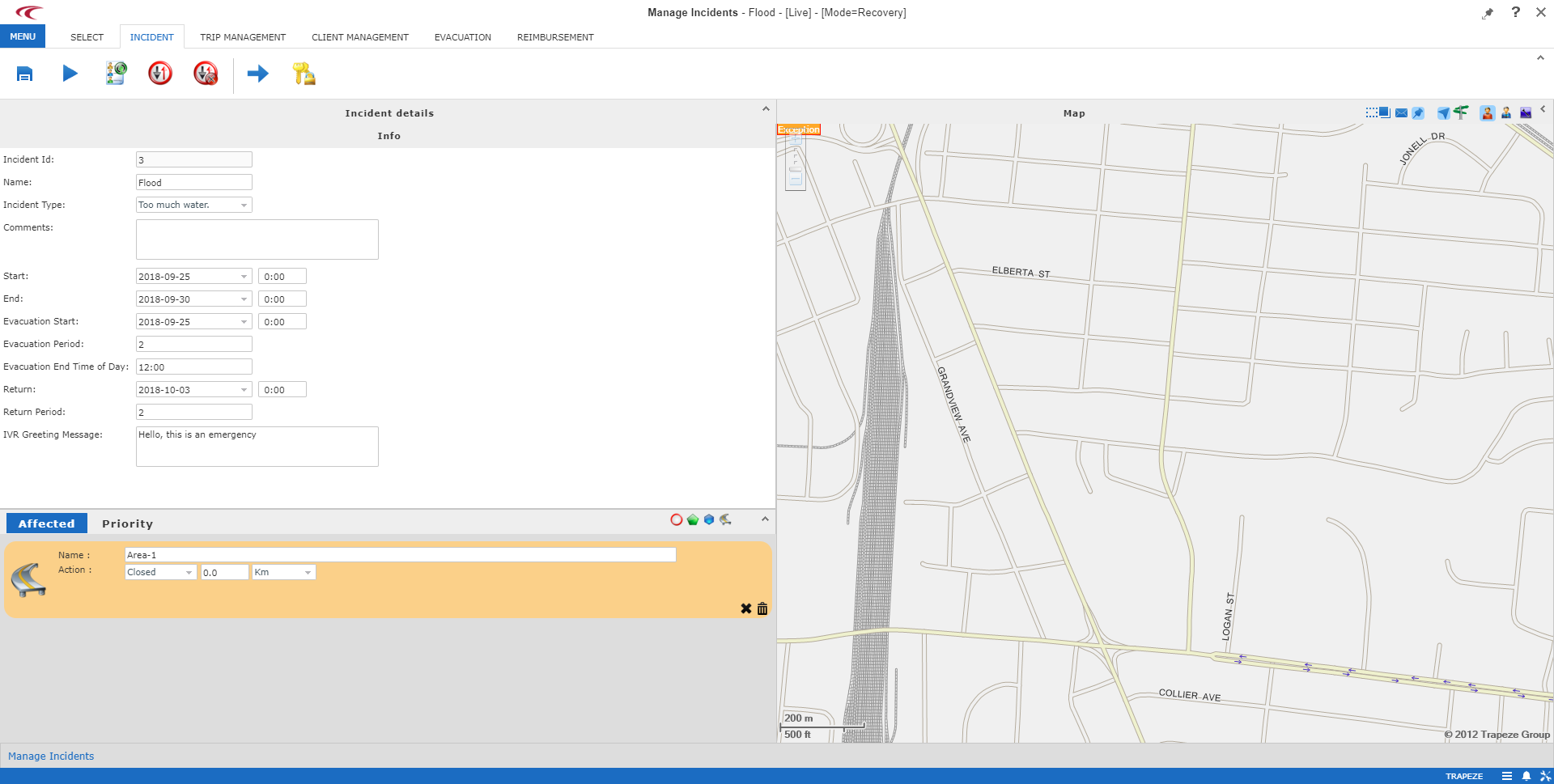
In the figure above, the Close Pane button is located in the upper-right corner of the Incident details pane. Close this pane to maximize the lower pane and provide more space for the Affected and Priority tabs.
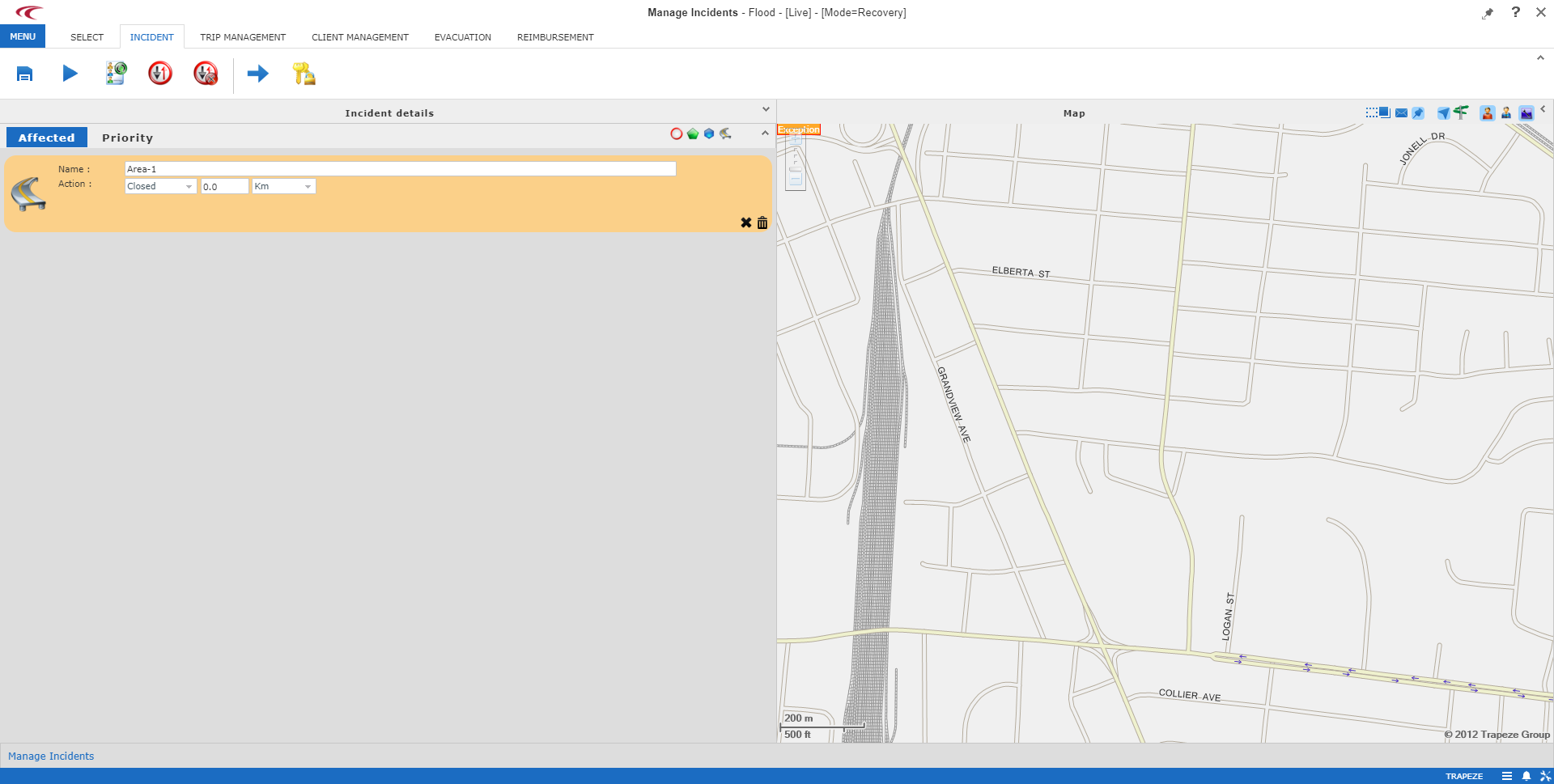
Click the button to reopen the Incident details pane.