
Preparing the Database
DBEdit 3.3 or later is used to compare the *.db-schema files (such as PassTRR.db-schema) against your data source.
About this task
Procedure
-
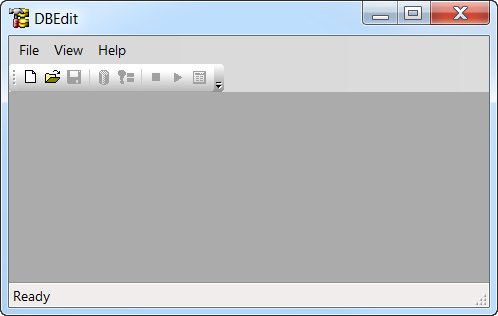
Open DBEdit.
Typically, DBEdit is found in the toolkit, in the DBEdit-3.3 folder.
- Click .
-
Search for and open the following *.db-schema files located in
<path>\Modules:
The Modules folder is found in the TP6 files.
- PASSTRR.db-schema
- PASS.db-schema
- Map.db-schema
- IVR_NOVUS_conv.db-schema
- NovusTemplate.db-schema
- Cmn.db-schema
- Core.db-schema
- CoreLog.schema
Each file opens in its own tab. -
In the first tab, click the Compare button:

-
If you are asked to connect to the database, select the PASS database and click
OK on all of the prompts that follow to start the compare
process.
A Compare Differences With Dbd dialog box appears. If updates are required, they are listed in the dialog box.
- Click Select All and then Apply to Datasource.
-
Close the tab when the changes have been applied.
If no updates are required, close the tab.
- Compare differences with the DBD and apply changes to the data source for the remaining files.