
Assigning Users and Groups to Groups
Users must be assigned to user groups to gain access to menus and screens. When assigned to a group, a user inherits all permissions assigned to the group.
You can also assign groups to other user groups. Groups inherit the permissions
of groups to which they belong, but note the following in cases of conflicts or unspecified
permissions:
- If a permission is both denied and granted, the permission is granted regardless of the group hierarchy.
- If a permission is not explicitly denied or granted, the permission is granted.
-
Click .
The Users and Security screen appears.
- In the Users and Groups pane, click the user or group that you want to assign to a group.
-
On the right vertical toolbar, click the Edit button:
 .
The Users and Security screen appears with the General tab open. It shows the basic information about the selected user or group.
.
The Users and Security screen appears with the General tab open. It shows the basic information about the selected user or group. -
Click the Membership tab.
The Membership tab appears.
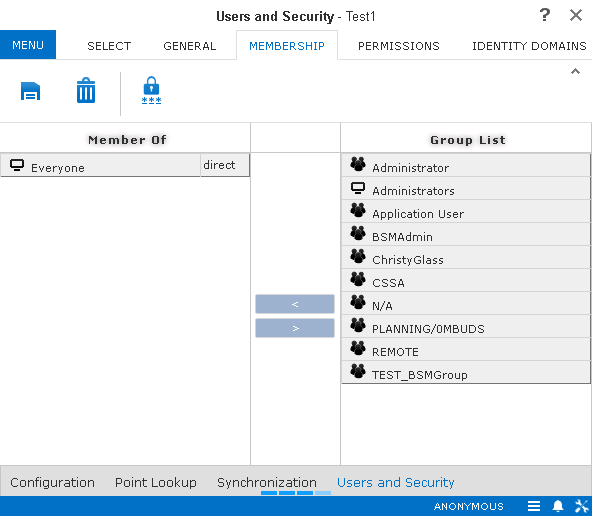
The Member of pane on the left, lists the groups to which the user or group belongs; the Group List pane on the right, lists the groups to which the user or group can be added.
-
To add the user or group to a group, do one of the following steps:
- Select the appropriate group in the Group List pane, and then click the < (leftward) button.
- Drag the user or group to the left pane.
- Optional:
To remove the user or group from a group, do one of the following: steps:
- Select the appropriate group in the Member of pane, and then click the > (rightward) button.
- Drag the user or group to the right pane.
-
Click the Save button:
 .
.