
Deleting Associations Applied to Points
To proceed with deleting an association that has been applied to a point, you must first remove the amenity type associated with the point to break the association.
- Click Points in the Stop Manager list.
- Search for the point to which the association has been applied.
-
On the screen toolbar, click the Edit Point button:
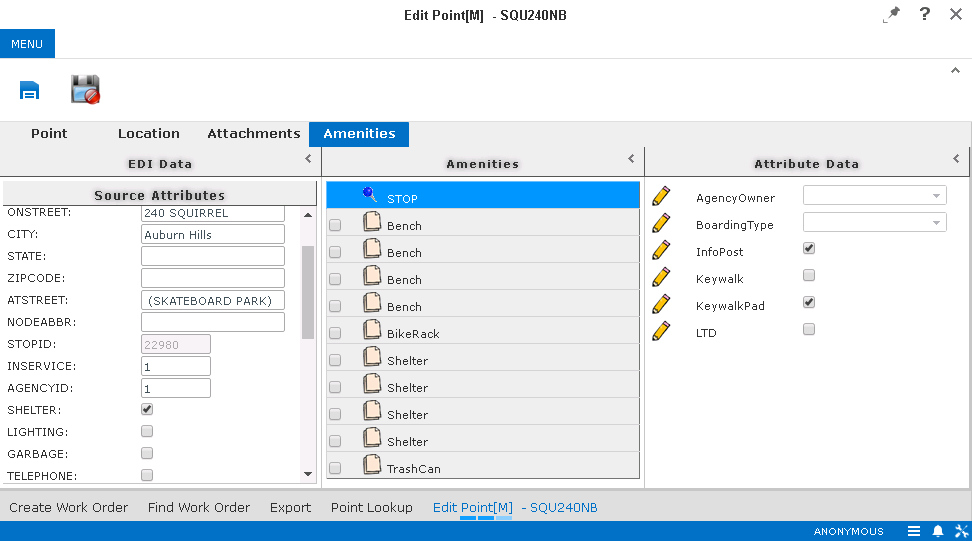
 The Edit Point screen appears with the data of the selected point.
 - Open the Amenities tab.
-
In the Source Attributes pane, clear the check box beside the amenity associated with the point.
For example, the shelter at a certain bus stop has been removed. The association between the point and the amenity, therefore, no longer applies. Clear the Shelter check box in the Source Attributes pane.
-
Click the Save button:
 .
.