Place text in quotation marks for exact match search results.
Geocoding Points
The Location tab also allows you to geocode points that have not
been previously geocoded.
Open the Points screen and select the
point to which you want to add Location information.
Note: Longitude and latitude coordinates can be obtained using third-party resources such as
mapping websites.
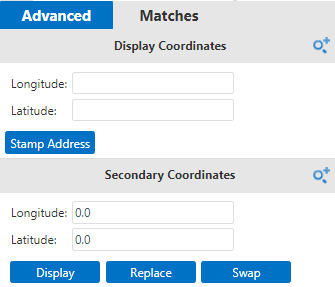
The Advanced tab in the Location screen shows two
panes that show Longitude and Latitude fields:
Display Coordinates and Secondary
Coordinates.
On the Location tab, open the Advanced
pane.
On the Display Coordinatesframe, you can perform any of the
following steps:
Enter the longitude and latitude coordinates, if known.
Click the approximate location of the point on the map. The coordinates of the
selected location are shown in the appropriate fields.
Select one of the possible matches on the Matchespane.
The coordinates of
the selected match are shown in the appropriate fields.
Click Stamp Address.
The left pane shows a message indicating that the address has been manually
geocoded together with the coordinate information of the selected location. The location
is represented by a green circle on the map.
Click Accept.
The Address Fields frame shows the address
details.
Complete the address information. Add or edit the values as appropriate.
Click the Save Changes button: .
Alternative methods of geocoding points are provided by the commands on the map
toolbar.

 .
.