
Customizing Launchpad, Accessories, and Resource Monitor
If you choose to use Launchpad, Accessories, and Resource Monitor, you can define how they appear on your screen.
Choose one of the following ways to customize Launchpad, Accessories, and Resource Monitor.
- Right-click on the top portion of one of three elements: Launchpad, Accessories,
and Resource Monitor.
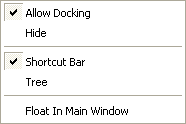
- Allow Docking: Lets you stack the Launchpad, Accessories, and Resource Monitor together to the side of the open screen. If it is not selected, then you are not able to arrange them together or place them outside of the main screen area.
- Hide: Removes the selected item from view.
- Float In Main Window : Makes the selected option float on
your screen.
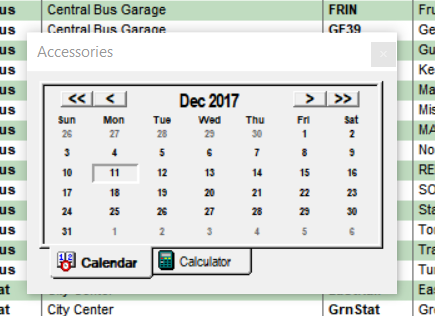
- Float in Main Window and Allow Docking are toggle options (one or the other is selected).
- Right-click on the top portion of the Launchpad. The
shortcut menu gives you the following additional options:
-
Shortcut Bar: The arrangement of the Launchpad
as it appears by default.
-
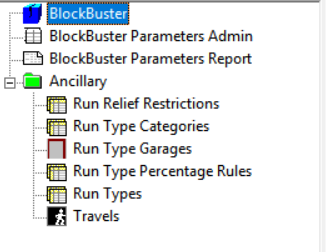
Tree: Allows you to view the Extensions arrangement of the
Launchpad.
-
Shortcut Bar: The arrangement of the Launchpad
as it appears by default.
- Right-click on the Launchpad and choose Large Icon or Small Icon to adjust the size of the icons.