Place text in quotation marks for exact match search results.
Re-sorting and Renumbering Rosters
There are several options to re-sort and renumber rosters.
Re-sort your display of rosters based on what you selected from the Order
By drop-down list on the Display tab.
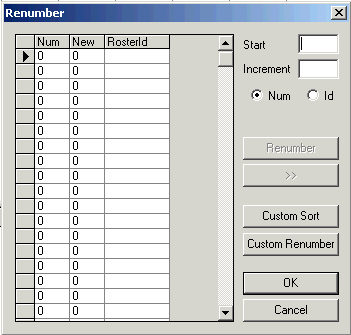
To renumber rosters, theRenumber dialog box in Rostering is similar to
the Renumber tab in Blocking and Runcutting. It also allows you to
identify the rosters with numbers or IDs.
Customized roster numbers are mainly used for reports such as Driver Paddles.
The Custom Sort button enables the system to sort the rosters in the
order that is going to produce the best off-days. For example, the by week template order or
Saturday and Sunday order appear first.
Click Rostering > Renumbering. The Renumber dialog box appears.
Perform one of the following steps:
Click Custom Renumber.
Click RosteringRunRenumber.
The rosters are numbered according to your requirements.
Click OK.
To renumber, click Num.
In the Start field, type the number that will begin the series
of numbers.
In the Increment field, type a number by which you want the
number to increase.
Click Renumber.
Click OK.
Alternatively, to apply or update the Roster ID, click
Id.
If you want the roster ID to be the same as the existing roster number, click the double
greater than (>>) button.
(If Applicable) To re-sort your
rosters, click Custom Sort.
Note: Contact your Trapeze representative for more information on the Custom Renumber and
Custom Sort features.