Place text in quotation marks for exact match search results.
Loading Runs from Runcutting
If no runs have been loaded when you open the Rostering screen,
the left section of the screen is empty. Use the Load Runs feature to
load the unpicked runs from your Runcutting screen.
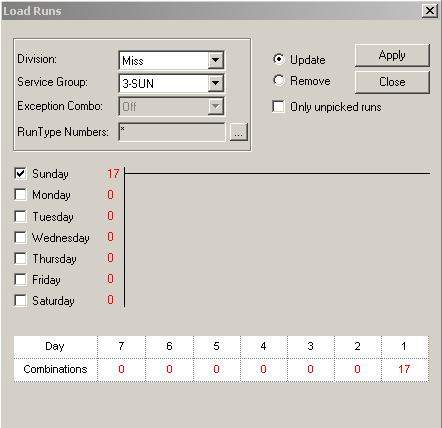
An asterisk (*) in the Run Type Numbers field indicates that the
file to be loaded includes all the run types in the system. The numbers and the lines on
the graph indicate the number of runs that occur on each day of the week.
With the Rostering screen open, click Rostering > Load Runs.
The Load Runs dialog box appears.
In the Division and Service Group
drop-down lists, select the division and service group whose runs you want to load.
Optional: In the Exception Combo drop-down list, select the exception you
want to apply.
Note: This is only used with the BlockBuster module.
Optional: In the Run Type Number field. Click the
Ellipsis button:
An asterisk (*), which represents all the run types set in your Union Contract,
appears in this field by default.
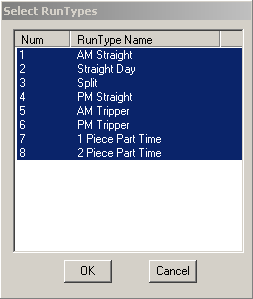
The Select Run Types dialog box appears. All the run types
are highlighted.
Optional: To assign a run type or several run types, click anywhere on the Select Run
Types dialog box to deselect all the highlighted run types.
Select the run types you want to assign first. For example, select a full-time run
types such as AM Straight.
Click OK.
Optional: If you did not select the Week Templates when you set up your Service Group ancillary
data, click the appropriate days of the week on the left section of the Load
Runs dialog box to make sure the correct runs are extracted.
Click Apply.
The statistics at the bottom of the dialog box show the number of runs for each
day. Note the statistics and/or write them down. The statistics give you combinations
based on the number of runs that are extracted but does not combine these runs for you at
this time. The purpose of the statistics is to show you the possible run
combinations.

 An asterisk (*), which represents all the run types set in your Union Contract, appears in this field by default.The Select Run Types dialog box appears. All the run types are highlighted.