
Rostering Data Filters
The Filters frame on the Display tab is used after you create rosters.
The options in the frame help you to change the data that you can view in one grid or in both grids in various ways such as by time, day of the week, run, and roster type. You can also compare certain data or perform manual rostering.
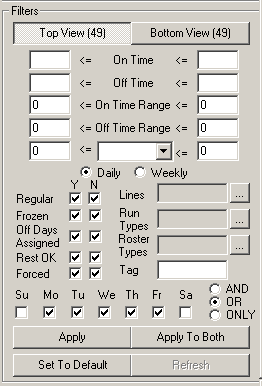
When you select an option, or type data in a field, the fields or controls that appear shaded are activated.
| Options | Description |
|---|---|
|
Top View and Bottom View buttons |
Allows you to select the grid with which you want to work. The numbers in
parentheses that appear on the buttons indicate the number of rosters on the
grids. Both buttons also appear in the Perform On frame of the Auto tab together with an All button. |
| Apply | Applies the filter selections to the grid where your cursor is on or where the selected rosters are located. |
| Apply to Both | Applies the filter selections to both grids. |
| Set to Default | Clears your selections and returns the original values and settings in the Display and Filters frames. |
|
Refresh |
Updates the displayed data. (Not activated.) |
|
Y (Yes) and N (No) |
The headers indicate that the following conditions were applied/not applied
to the rosters:
Note: Both the Yes and No check boxes of all conditions are selected by
default. This means that unless you clear either check box, you will see
rosters that display both conditions in the grids. For example, with both
Frozen check boxes selected, rosters which are
frozen and not frozen appear on the grids. |
| Daily | Applies to fields that relate to specific times, for example, On Time, and time intervals, On Time Range. This option works together with the drop-down list and the fields below the Off Time Range filters. |
| Weekly |
Applies to fields that relate to time intervals only, for example, On Time Range. This option works together with the drop-down list and the fields below the Off Time Range filters. |
| AND |
Shows the rosters that have all the days that are selected. This option is associated with the day check boxes. |
| OR |
Shows rosters that have one of the days that are selected. This option is associated with the day check boxes. |
|
ONLY |
Shows rosters that only have the days selected. For example, if Su and Sa are selected, the system looks for rosters that only have both days. This option is associated with the day check boxes. This option together with AND and OR work in conjunction with the selection of days of the week in the lower section of the frame. When you select a day check box or the Weekly option, the On Time, Off Time, Lines and Time Range fields are activated including the Supplementary range field (below the Off Time Range field). |
|
On Time and Off Time |
Shows rosters which are less than or equal to (<=) the specified times, for example, 7:00 and 14:00. |
|
On Time Range and Off Time Range |
Shows rosters that are less than or equal to (<=) the specified time range, for example, 4h00 and 8h00. |
|
Supplementary range (Not labeled on screen) |
The items in the drop-down list usually include Pay Time and Work Time. Select an item from the drop-down list and type the appropriate time span you want in the blank fields beside the field. |
|
Lines |
Click the ellipsis button to select the line you want from the Select LineGroups dialog box. |
|
Run Types |
Click the ellipsis button to select the run type you want from the Select RunTypes dialog box. |
| Roster Types |
Click the ellipsis button to select the roster type you want from the Select RosterTypes dialog box. |
|
Tag |
Enables the system to search for rosters marked with tags that are words or a set of characters used to identify rosters. |