Place text in quotation marks for exact match search results.
Creating Patterns (for Nodes)
A node pattern defines the variation of nodes to be used to build a trip of a
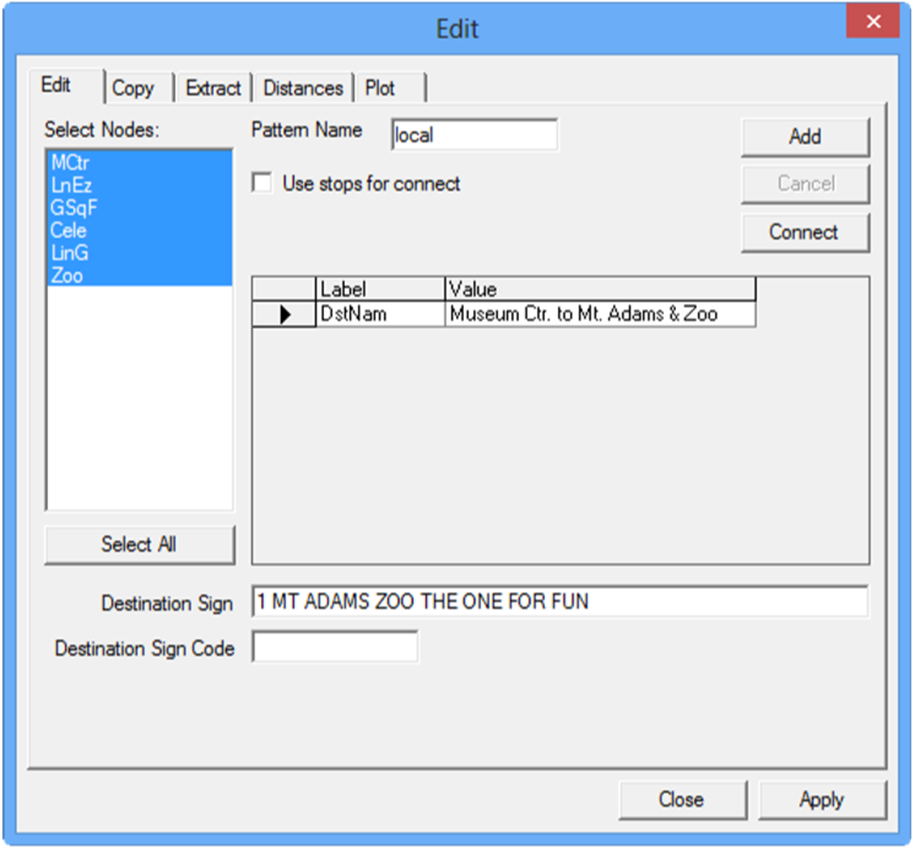
particular line. On the Edit tab in the Patterns
Edit dialog box, all the nodes for the line are highlighted in the Select
Nodes frame by default.
On the Patterns tab, click Route Definition > Edit or click Edit:
The Patterns Edit dialog box opens.
Click Add.
The list of nodes of the line you are working on appear in the Select
Nodes frame.
From the Select Nodes list, select the nodes that you want to
use for the new pattern. Be sure to start the pattern with a node not a stop.
Optional: To use all the nodes for this pattern, click Select All.
In the Pattern Name field, type a name for the pattern using
your site’s naming convention.
Optional: Perform any of the following steps to complete the fields:
To create a best guess pattern trace that displays the shortest possible distance
between the start and end of the trace, click Connect. The
pattern trace appears on the system map.
To ensure a more accurate guess, select the Use stops for
connect check box.
In the Destination Sign field, type a short description of
the pattern, for example, line number and main street used by the route. (This piece of
information can be used in customer information systems, for example, bus
signage.)
In the Destination Sign Code field, type the code for the
destination or headsign. (This field is used with TransitMaster applications.)

 The Patterns Edit dialog box opens.