
Place text in quotation marks for exact match search results.
Copying Patterns
The Copy feature of the Patterns Edit dialog box is similar to the
Copy tab of the Nodes Edit dialog box.
For example, you can copy the pattern of the Westbound direction for the
Eastbound direction. The direction of the pattern you select in the
Patterns grid appears by default in the From
field while the opposite direction appears in the To field. The
patterns associated with the From direction appear in the frame below it.
On the Patterns tab, click Route Definition > Edit or click Edit: .
The Patterns Edit dialog box opens.
Select the Patterns Copy tab.
The Copy tab opens:
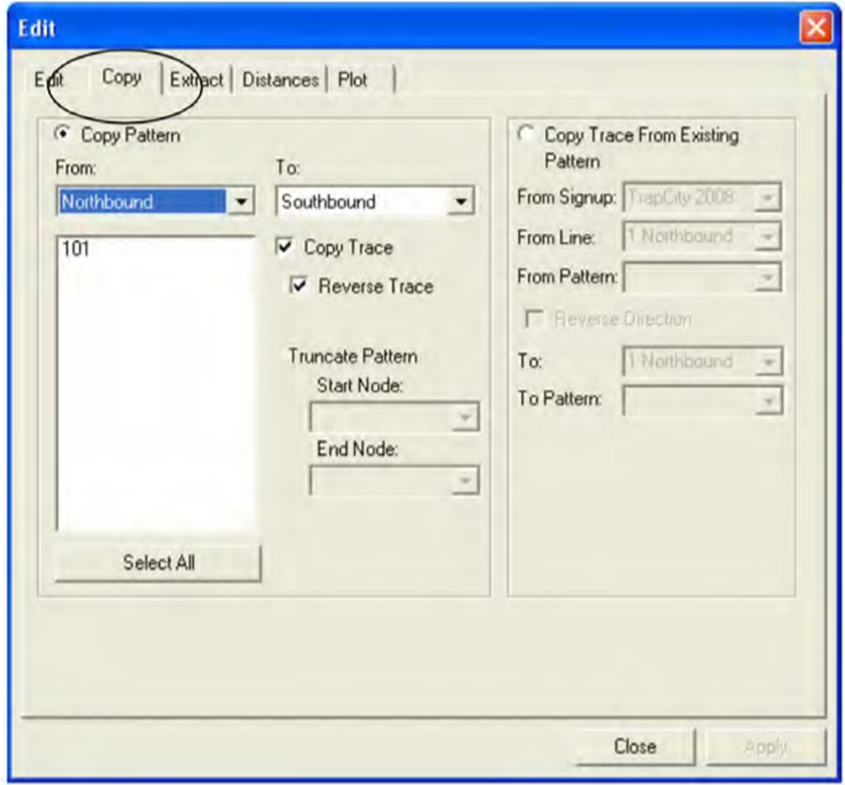
If the directions in the From and
To fields are not what you want, replace them with the
appropriate directions.
In the list of patterns in the frame below the
From field, select the patterns you want to copy.
Optional: To copy all patterns in the From direction, click
Select All.
To copy the pattern traces of the patterns selected, select the
Copy Trace check box.
To have the system automatically create a new pattern for the
reverse direction, select the Reverse Trace check box.
Click Apply. If the patterns do not contain the same nodes, a
message appears asking if you want to continue.