
Creating Service and Peak Periods
Set up the service periods and define peak service periods for the services you created.
Note: Peak services data is used for in determining peak vehicle requirements in Blocking
and for FX and PLAN reports.
-
On the Service Groups tab, click Edit.
The Edit dialog opens.
-
Click Peaks.
The Peak Periods dialog opens.
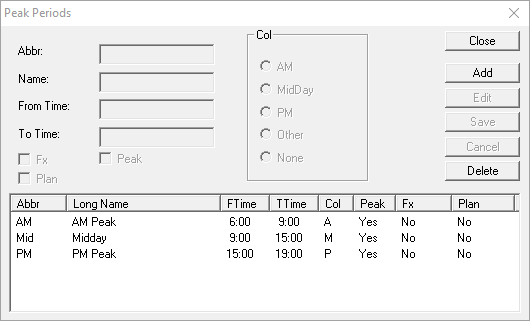
- Click Add.
- In the Abbr field, type an abbreviated name for the period.
- In the Name field, type the full name of the period.
- To create a time span for your period of that service, type values in the From Time and To Time fields.
- In the Col frame, select the option that best describes this period (AM, MidDay, PM, Other, None).
-
If you are creating a peak period and want to indicate that it is to be applied to FX or PLAN, select the appropriate option:
- Fx
- Plan
-
(If Applicable) If it is a peak service, select the Peak checkbox.
Note: If the Peak checkbox is selected, the PVR function on the Blocking screen shows the maximum number of buses during the period. If the Peak checkbox is not selected, the PVR function shows the minimum number of buses during the period.
- Click Save.
- Click Close.
The period or peak period appears in the grid. If you selected FX or PLAN, the peak periods assigned to either application are marked with a Yes in the FX and Plan columns in the grid.