
Creating Patterns and Line Traces Automatically
In the FX Data tool you can automatically create pattern and line traces for selected services and lines.
- Click . The Extended FX Data Tool appears.
- In the Service list, choose the service you want. The default is set at <All> for all lines.
-
To select more than one Service, choose
<Custom>.
The Select Service dialog box appears.
-
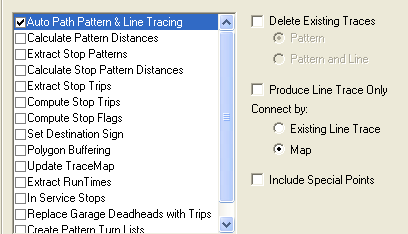
Select Auto Path Pattern & Line Tracing.
-
To delete existing traces, perform the following steps:
- To auto plot a pattern trace based on stops or an existing pattern trace, click Stop or Existing Trace.
- To create pattern and line traces, select the Map option. The system selects each stop in the route.
- To create pattern traces only, select the Existing Line Trace option. The system creates pattern traces based on th0e existing line traces.
- To create line traces only, select the Produce Line Trace Only check box and the Map option.
- To include special points if the system is configured to use special points, select the Include Special Points check box.
- Click Execute.
- Click Close.