
Creating Polygons Around Lines or Patterns
The Polygon Buffering option allows you to create buffers around lines or patterns. A buffer is an area of specified distance around a point or a line.
- Click . The Extended FX Data Tool appears.
- In the Service list, choose the service you want. The default is set at <All> for all lines.
-
To select more than one Service, choose
<Custom>.
The Select Service dialog box appears.
-
Select Polygon Buffering.
A Buffer is an area of specified distance around a point or line.
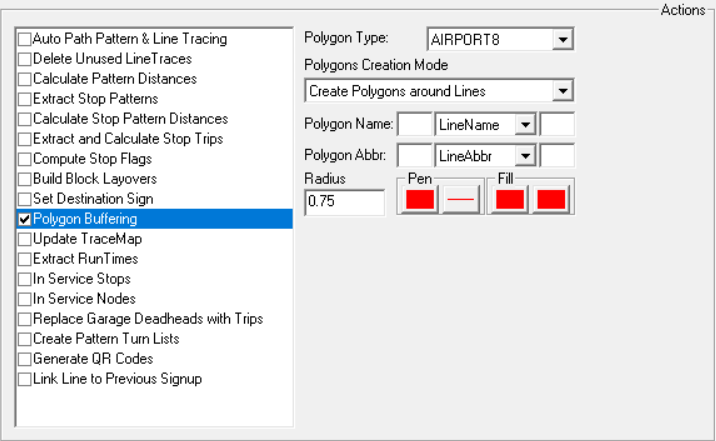
- In the Polygon Type list, select the type you want.
-
In the Polygon Creation Mode list, select from the following
options:
- Creating Polygons and Patterns
- Create Polygons and Lines
- In the Polygon Name field, type the name you want to label the polygon.
- In the Polygon Abbr. field, type the appropriate abbreviation.
- Optional:
In the lists beside the Polygon Name and Polygon
Abbr fields, select the attributes you want to apply.
Type the appropriate values for these options in the blank fields beside them (instead of a name or abbreviation).
- In the Radius field, type the desired radius that you want around the line or pattern.
- In the Pen and Fill boxes, select the pattern and color to fill the area within the polygon.
- Click Execute.
- Click Close.