
Updating Trace Maps
The Updated Trace map tool converts XY coordinates to match longitudes and latitudes.
- Click . The Extended FX Data Tool appears.
- In the Service list, choose the service you want. The default is set at <All> for all lines.
-
To select more than one Service, choose
<Custom>.
The Select Service dialog box appears.
-
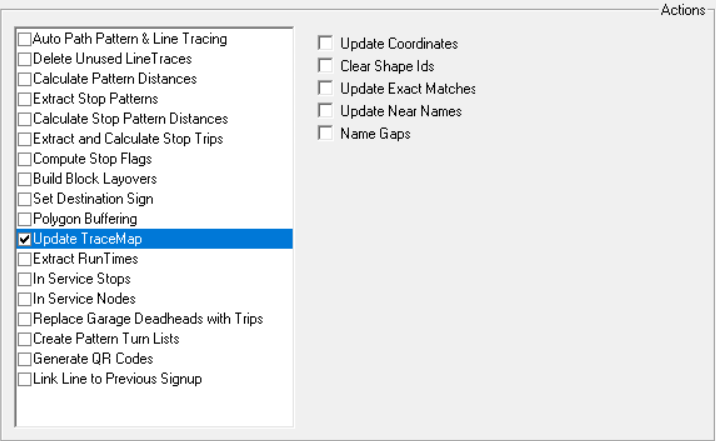
select Update Trace Map.
-
Select one or more of the following options:
- Clear Shape Id's: If selected will set the NameId and ShapeId to zero for all records.
- Update coordinates: If selected converts XY coordinates to match longitudes and latitudes.(This is the only function that this tool previously performed.)
- Update Exact Matches: If selected, the NameId and ShapeId are updated when the tracemap record exactly matches a MapShp record.
- Update Near Names: If selected, the NameIds are updated based on a nearby mapshp record that is at a similar angle.
- Name Gaps: If selected, when a shp record on a deadhead or pattern trace has no name and is located between segments that have the same name, it is also assigned that name.
- Click Execute.
- Click Close.