
Automatically Plotting Pattern Traces
Point to Pattern traces using the options provided.
-
On the Plot tab, click Auto Path.
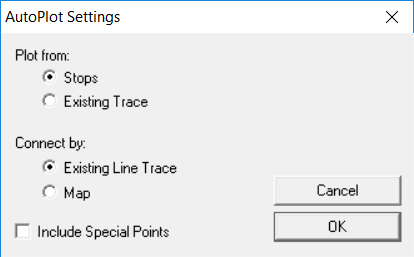
The AutoPlot Settings dialog box appears.
-
Choose the option from which you want to plot:
- Stops - Use if the route trace does not closely match the pattern you want to plot. (Click each stop to be included in the selected route.)
-
Existing Trace
-
Choose the option by which you want to connect the trace or use to build the
pattern trace:
- Existing Line Trace: Use the previously created trace.
-
Map: Use the streets on the map.
- Optional: To add the special points to the trace, select the Include Special Points check box.
- Click OK.
-
Click Apply in the Plot
tab.
If you have a fragmented pattern trace, a message appears after you click Apply. It informs you that the pattern trace is fragmented and asks if you want to continue to save the pattern.
- Click Yes.