
Splitting Segments into Two Segments
A segment can be split into two parts at a shape point. If a shape point does not appear in the location where the segment is to be split, add a point so that the segment can be split.
Note: A segment that has only end points cannot be split. A segment must have at least one
shape point before it can be split.
-
On the MapEdit screen, make sure the Select button is pressed by
performing one of the following steps:
- Right-click the map, and then click Segment Mode.
- Click .
- On the toolbar, click the Select button:

-
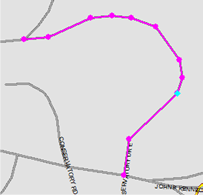
Select the shape point where the segment is to be split. The point appears in cyan.
-
Click , or click the Split button:
 The Split Segment dialog shows estimated address ranges for the resulting segments. The first two Left Address Range and Right Address Range fields show estimated address ranges from the selected segment's From point to the selected point. The second two Left Address Range and Right Address Range fields show estimated address ranges from the selected point to the selected segment's To point.