Viewing Detailed Segment Information
After selecting one or more segments on a map, you can view each segment's information, which includes the name, classification, and addresses for selected segments.
-
Click , or click the Properties button:

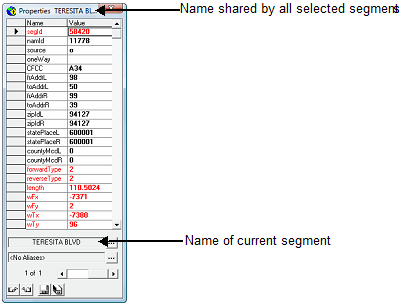
The Properties dialog shows information for the current selection. The left column of the dialog lists property names, while the right column shows the current selection's property values. The name of the current segment appears below the grid. If the street name is shared by all selected segments, it appears in the title bar.
If multiple segments are selected, values are shown for the current selection. The background color of each cell indicates whether the values are the same for all selected segments. If the cell background is white, the property value is the same for all selected segments. If a cell background is gray, the property value differs among the selected segments.