
Flex Events on the Trips Tab
If there are Flex events on the trips, they are shown in between the nodes/stops included in the trips. An example is shown in the following graphic:
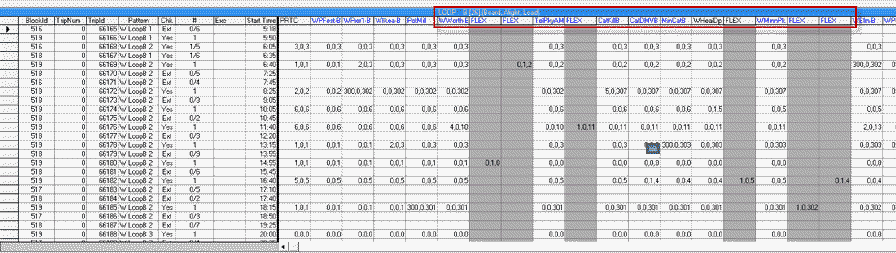
| Field | Description |
|---|---|
|
Block |
Displays the block number of a trip. |
| Pattern | Displays the pattern name of a trip. |
| Chk | Displays the check status of a trip:
|
| Start Time | Displays the time of the first trip. Note: To add the first trip time to the
Trips tab, click and set the Display First Trip Time
property to Yes. |
| # |
Displays the check and extraction status of the trip. For example, 0 shows that the trip has neither been checked nor extracted. While 1/2 indicates that a trip has been extracted twice but the check data has only been entered into the system for one of those times. |
|
Nodes/Stops (all other columns) |
All other columns show the names of the nodes or stops (time points) for the selected route. To display all the stops, as well as the nodes, select the Show all Stops check box in the upper-right side of the tab or click . Initially, only scheduled arrival times for the nodes are displayed; however, you can change the screen to show other data for each node or stop. When a specific trip is selected, node column headers are colored black while stop column headers are colored blue. Node or stop column headers that are colored red indicate that the maximum load occurred at this node or stop. |