
Customizing the TSDE Screen
You can change how your screen appears with the Customize and Extensions features in the Tools menu.
-
Click .
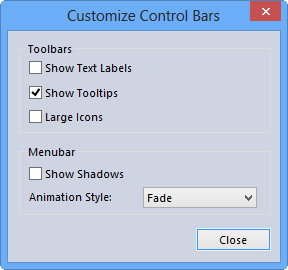
The Customize Controls Bars dialog appears.
-
To change the appearance of the commands on the main or screen toolbar, select any or all of the following options:
- Show Text Labels - If selected, the labels or names of the
buttons on the toolbar are shown.

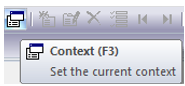
- Show Tooltips - If selected, when you hover your cursor
over a button, the name and a description of the button are shown in a box on the lower
right of the selected button.
-
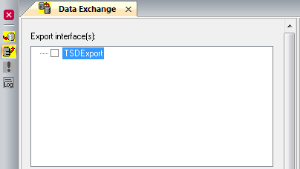
Large Icons - If selected, the size of the buttons that are displayed on the left side of the Data Exchange tab is increased.
- Show Text Labels - If selected, the labels or names of the
buttons on the toolbar are shown.
-
To change the appearance of the main or screen toolbar, select any of the following options:
- Show Shadows - If selected, a shadow appears on the right side of the list that appears when you click a task in the main menu.
-
Animation Style - Select the manner in which the lists are displayed when you click a task in the main menu.