
Using Insert Query Element
You can use the Insert Query Element tool to add field names, table names, and SQL commands to queries.
- On an SQL report query page, select the query box location where you want to insert a name or command.
-
Select .
Or use CTRL+I.
-
To insert a field name:
-
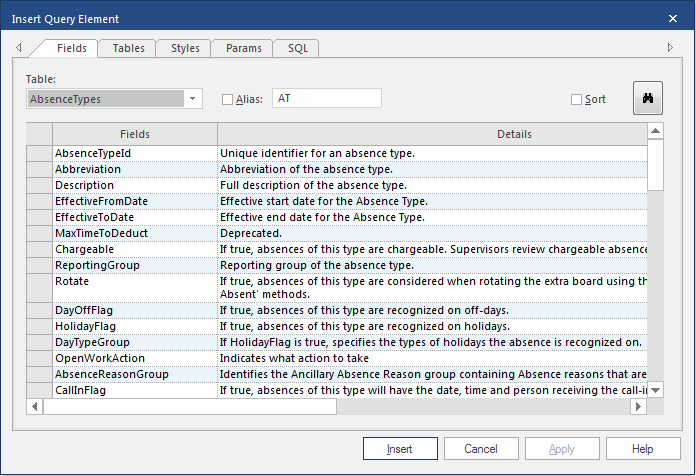
In the Table dropdown list, select the table
with the fields to add to the query.
-
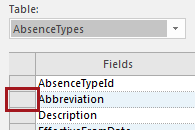
Select the gray box to the left of the field name to select it.
Use Ctrl-Click to select multiple fields.
-
In the Table dropdown list, select the table
with the fields to add to the query.
-
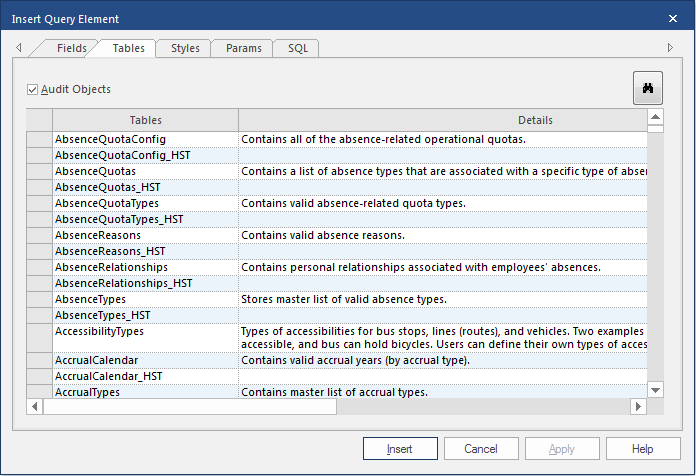
To insert a table name:
- Optional:
To include .HST tables in the list, select Audit
Objects.
- Optional:
Select
 to open the Find dialog and search for the
table to insert.
to open the Find dialog and search for the
table to insert.
- Optional:
To include .HST tables in the list, select Audit
Objects.
-
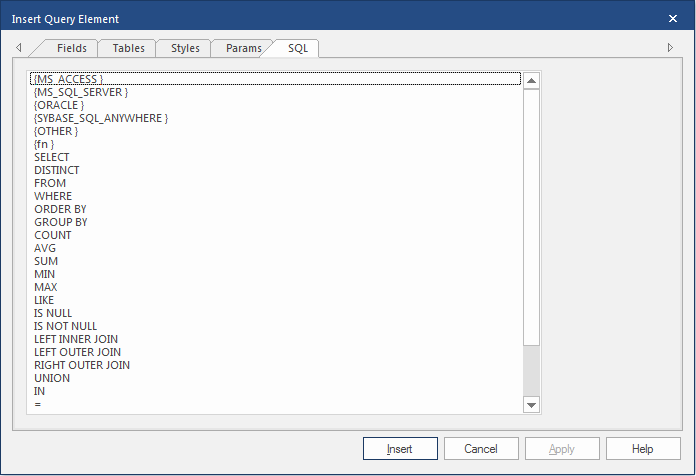
To insert an SQL command:
-
Select the SQL tab.
-
Select the SQL tab.