
Setting Up Shifting Breaks
Lunch breaks can be set up so that they can be taken at the employee's convenience within a work period. An absence can be automatically created if they sign in late from their break.
-
Define an Absence Type to be used for employees who sign in late from their
break.
For more information about creating absence types, see the OPS System Administrator and User Guide.
-
Define the OPS Daily Activity Type to be used as a break type.
- Open the OPS Daily Activity Types screen.
- Select the record to update or create a new record.
- Select the Is Break Type checkbox for the record.
- Save the record.
-
Define the work subtype to allow shifting breaks.
- Open the Work Subtypes screen.
- Select the record to update or create a new record.
- In the detail view, select Activity Flag.
-
Select Allow Break Activity Time Shift.
If you don't see this field, right-click in the detail view and select Customize. Select Allow Break Activity Time Shift from the list of Fields. If needed, right-click in the detail view and select Design to move the field around on the page.
-
Define a Start Shift Time.
This is the amount of time after the work start time that the break is allowed to begin.
-
Define an End Shift Time.
This is the amount of time after the work start time that the break is allowed to end. For example, if the work from time is 8:00, the Start Shift Time is 2h and the End Shift Time is 6h, the break can occur anytime between 10:00 and 14:00.
- Save the record.
-
Define the extra work's default activity type.
- Open the Extra Work screen.
- Set the Context (F3).
- Select the record to update or create a new record.
-
Define the Work Subtype.
This should be the work subtype defined in 3.
-
Define the Default Activity Type.
This should be the break type defined in 2.If you don't see this field, right-click in the detail view and select Customize. Select Default Activity Type from the list of Fields.
-
Define the Break Start Time.
This is the time that the break is expected to start. The actual break start time (in the Daily Activity record) will be updated after the employee has signed in for their break.
-
Define the Break Time.
This is how long the break can be between sign-in and sign-off.
-
Set the absence type to be used for employees who sign in late from their
break.
- Open the OPS Sign-In Terminal Parameters screen.
- Select the record to update or create a new record.
- In the detail view, select the Sign-In Parameters tab.
-
Define the Break Late Absence Type.
This should be the absence type defined in 1.If you don't see this field, right-click in the detail view and select Customize. Select Break Late Absence Type from the list of Fields.Note:When using shifting breaks, the Break Start Tolerance and Break End Tolerance fields aren't used and will be ignored by the system.
- Save the record.
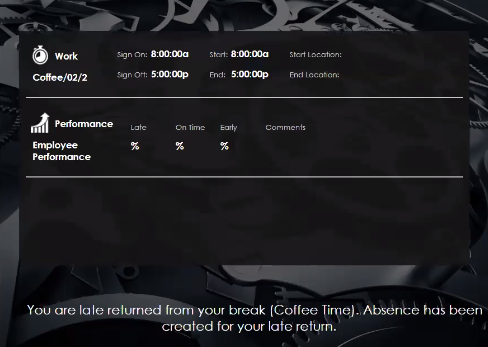
The absence is seen in the Employee Profile screen under Absences.