
Viewing Employee Sign-In Terminal Transactions

Dispatchers can view employee sign-in activities using the OPS SIT Activities screen.

The OPS > SignInTerminal > Activities > View security permission key must be granted.
  1. Navigate to the OPS SIT Activities screen.
  2. Set the Context (F3).
    1. Specify the Date for which to see records.
      If less than the specified number of transactions are available for the selected date, then the most recent transactions up to the specified date are used.
    2. Select the Agency, Kiosks, and Division(s) to show.
    3. In the Severity area, select the Status types to Show and define their Colors.
    4. Define the number of transactions to view in the Show last x transactions field.
    5. Select whether to Enable Auto-refesh.
    6. Select OK.
    Employee sign-in information is shown.
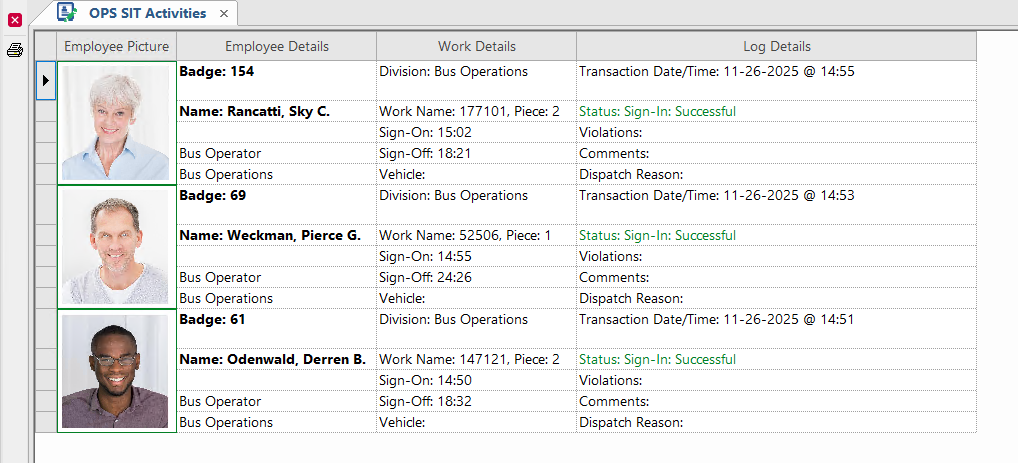
    The OPS SIT Activities screen showing information for signed in employees,
  3. To reprint a receipt, select a record and select Re-print Original Receipt: Printer.
    The visible information is defined on the Receipt Parameters tab in the OPS Sign-In Terminal Parameters screen.
To see sign-in activities by terminal, view the OPS Sign-In/Off Log screen.

If the OPS > SIT > Log Sign In and Sign Off Attempts property is selected, a system administrator can check the OPSSITLog table for all employee sign in and sign off attempts.