
Creating Extra Pay Claims on Larger Screens
Create extra pay claims for work that falls outside of your regular pay. For more information about your agency's extra pay policies, contact a supervisor.
-
In the navigation bar, select .
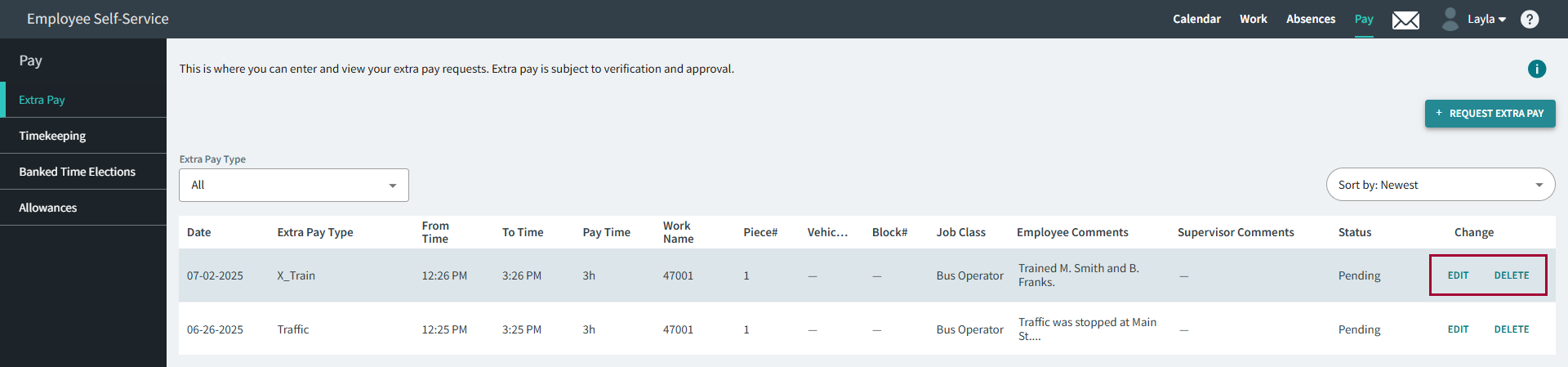
Previously created extra pay claims appear. Filter extra pay records by Extra Pay Type and sort the records as needed.
-
Select +Request Extra Pay and then the Work
Name for the extra pay request.
The work available for extra pay requests depends on system configuration.To create an extra pay claim from the Calendar page, select a previous work assignment and then +Request Extra Pay.
- Select the Extra Pay Type.
-
Enter the From Time. If applicable, select
Next Day.
Note:Clock time options are AM and PM. Use the Next Day option if your transit agency's operational day is more than 24 hours long and the entered time isn't in the first 24 hours of the day.
-
Enter the To Time. If applicable, select Next
Day.
If times don't meet the criteria for the selected extra pay type, warnings may appear. For example, From Time must be later than Sign Off Time.
- If required, select a Reason.
- Enter any Comments.
- Select Submit Request.
- Pending. The extra pay type requires approval and a decision hasn't been made.
- Submitted. The extra pay type doesn't require approval.
- Approved. The extra pay type requires approval and the request was granted.
- Denied. The extra pay type requires approval and the request was rejected.
The properties specify if employees can see and update extra pay requests.