You can install the Service Shell as a
Windows service that runs automatically when you start the
computer.
-
In the folder, where path is the directory where IVR is installed, double-click
TpSCM.exe.
The
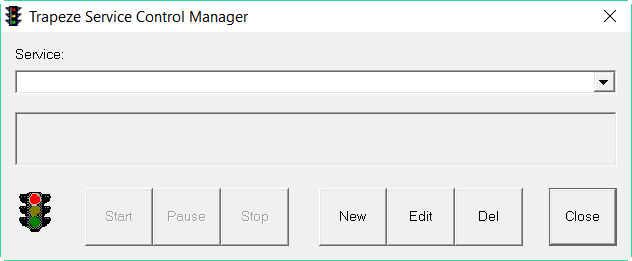
Trapeze Service Control Manager window appears.
-
Click New.
The
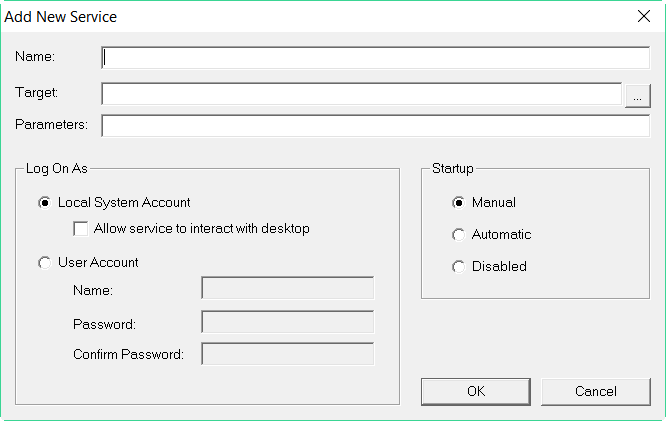
Add New Service dialog box appears.
-
In the Name field, type a name for the service.
-
Click the ellipsis (...) button beside the Target field.
The Open dialog box appears.
-
Navigate to the folder, where path is the directory where IVR is installed.
-
Click SrvShell.exe, and then click
Open.
The SrvShell.exe path and file name appear in the
Target field.
-
In the Log On As frame, select the Local System
Account option.
-
In the Startup frame, select the Automatic
option.
-
In the Parameters field, type the following:
-config profileName.profile -id=Server
Where:
profileName is the name of the profile that you want to use.
Server is the server specified in the profile (Primary or Secondary).
-
In the Add New Service dialog box, click OK.
-
In the Trapeze6 Service Control Managerdialog box, click
Start.
-
Click Close.