Importing User Groups
When you are creating multiple worker groups that will have the same or similar security permissions, import and reuse the permission settings you have created for an existing worker group to save time and effort.
- Browse to the xml file that contains the worker group information you exported.
- Open the file with a text editor and search for the identityName field.
- Overwrite the name of the worker group with the name of a new worker group and click Save.
-
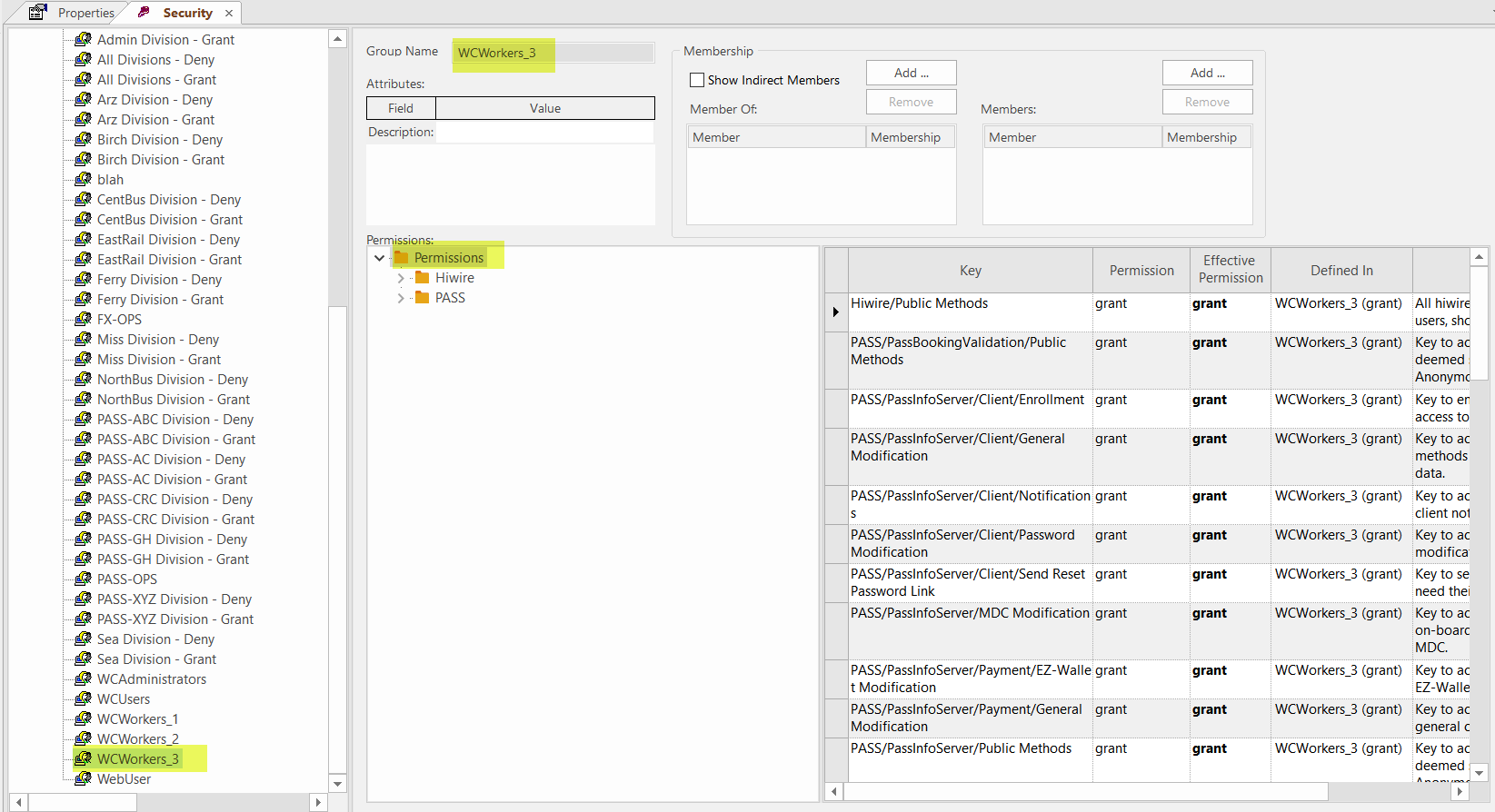
In the User Groups list in the Security screen,
right-click the worker group which you exported the file and click
Import User Groups.
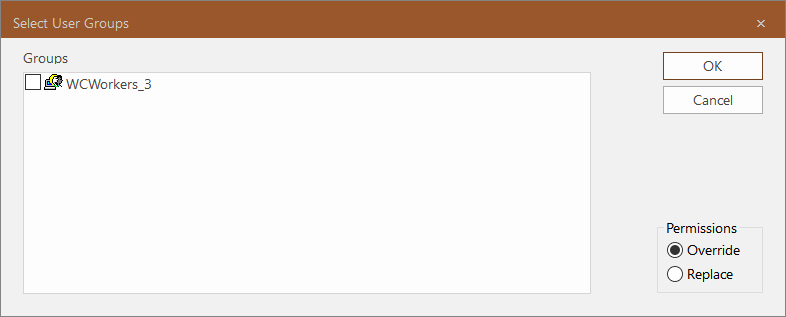
The Select User Groups dialog appears
-
Select the exported user group file and click OK.
The new worker group identified in the xml file is added to the User Groups list. The set of permissions shown in the Permissions pane is the same as that of the exported worker group.