
Refunding Period Passes
Refunds for period passes are normally processed using the original method of payment.
Before you begin
About this task
Procedure
- Search for and select the Client seeking a refund for the period pass.
- Click the Period Passes tab.
- In the Purchased Period Passes frame, click the pass to refund.
-
Click Refund.
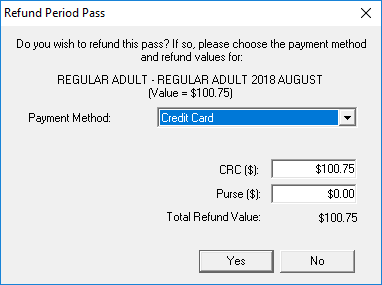
The Refund Period Pass dialog box appears.
-
Click a Payment Method in the list.
Payment methods are Purse, Cash, Credit Card, Debit Card, Cheque, Wire Transfer, and On Account.
- If a Payment Method other than Purse was selected, type the amount to refund to that payment method.
-
Type the amount to refund to the Purse ($).
Note that the amounts entered in the Payment Method and Purse fields cannot exceed the Total Refund Value.
-
Provide the information associated with the refund payment method type:
If the client is using Complete these fields Cash, their purse, or on account - Status
The status of transaction.
Status options are defined in ancillary data.
- Reason
The reason for the transaction.
Reasons are defined in ancillary data.
- Comments
- Any comments about the transaction.
Credit card
- Card type
- The card type in the list.
- Status
- The status of transaction.
- Reason
- The reason for the transaction.
- Please enter the Confirmation Number
- The confirmation number provided by the issuer after the transaction has been processed. If a mask is used (for example, #####), typing the confirmation number will overwrite the mask as the number is typed.
- Comments
- Any comments about the transaction.
Debit card - Card type
- The card type in the list.
- Status
- The status of transaction.
- Reason
- The reason for the transaction.
- Please enter the Confirmation Number
- The confirmation number provided by the issuer after the transaction has been processed. If a mask is used (for example, #####), typing the confirmation number will overwrite the mask as the number is typed.
- Comments
- Any comments about the transaction.
Check - Card type
- The card type in the list.
- Status
- The status of transaction.
- Reason
- The reason for the transaction.
- Cheque #
- The check number.
- Cheque Date
- The date the check was issued.
- Comments
- Any comments about the transaction.
Wire transfer - Status
- The status of transaction.
- Reason
- The reason for the transaction.
- Wire transfer #
- The wire transfer number.
- Transfer Date
- The date the transfer was done.
- Comments
- Any comments about the transaction.
- Click OK.